Skip to content

How MangaSendr gets your manga onto your Kindle

  1. Send the manga files you already have, from any browser, and pick your Kindle.
  2. MangaSendr trims plain white borders, sizes each page for your Kindle and splits big volumes to fit Amazon's email.
  3. It's emailed to your Kindle and usually shows up within a few minutes.
Send your first volume free

You don't need a card, and there's nothing to install.

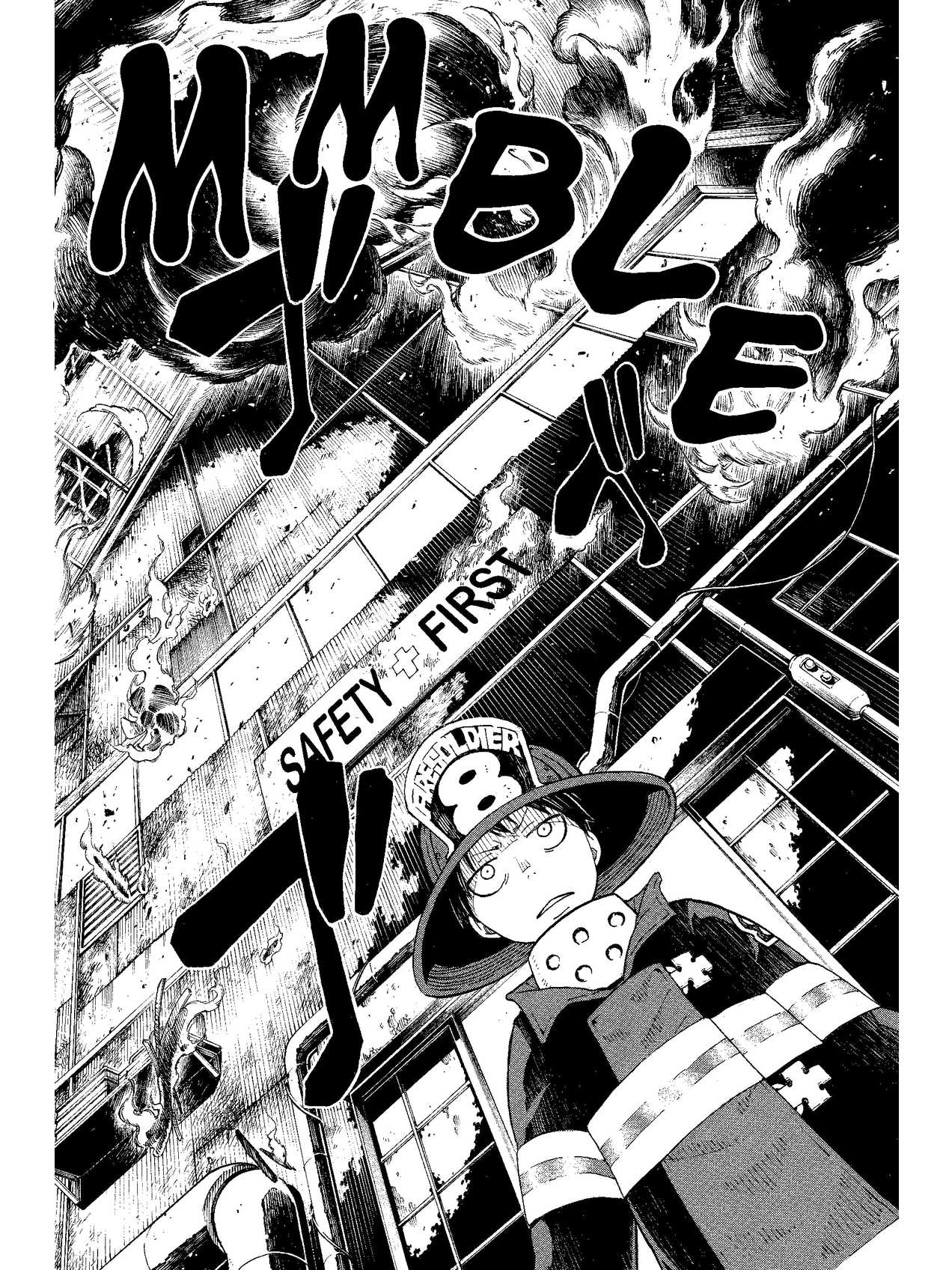
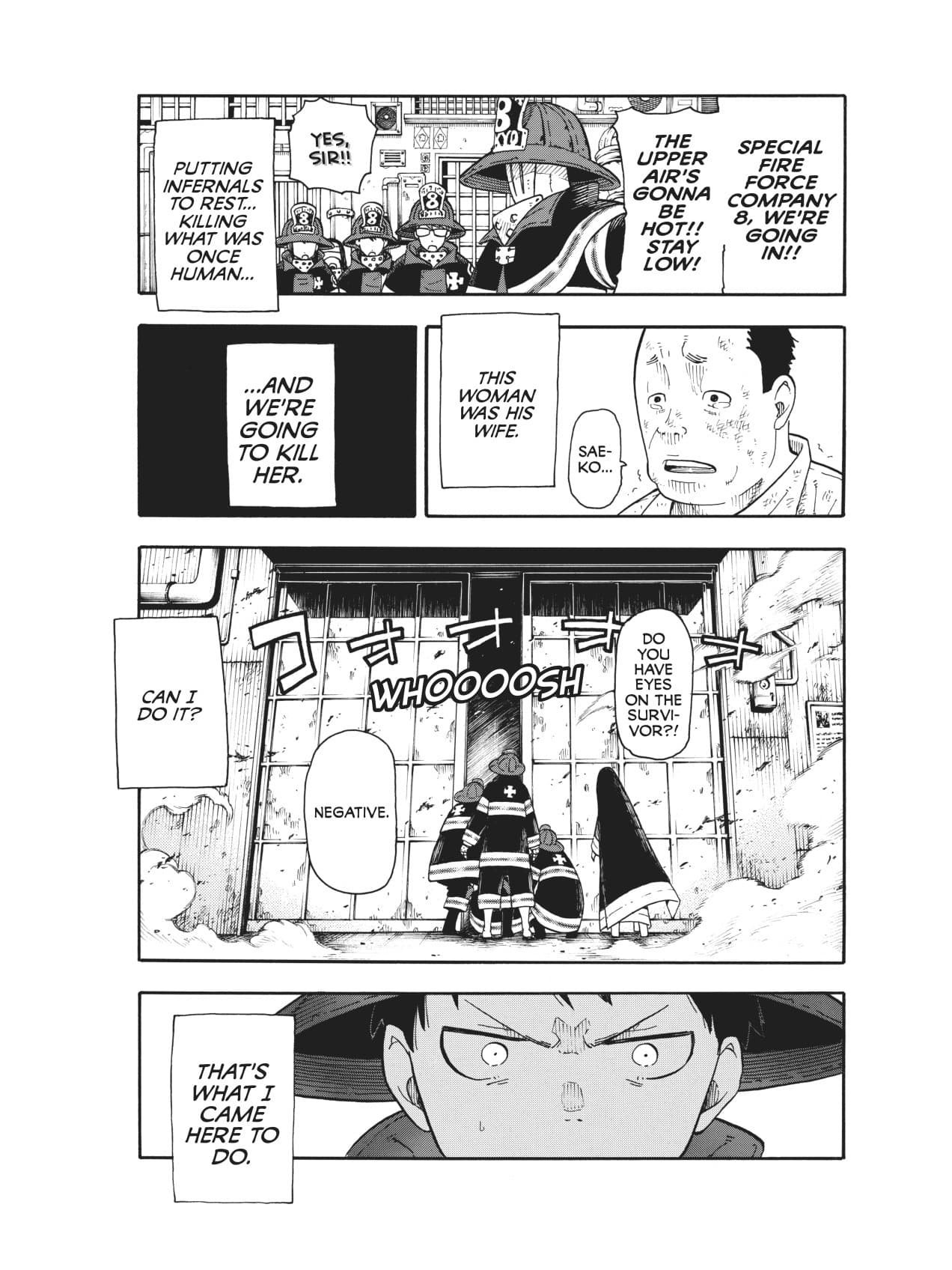
A page from Fire Force volume 1 as MangaSendr builds it for a Kindle Paperwhite, filling the screen
A page as MangaSendr builds it for a Kindle Paperwhite.

What arrives on your Kindle

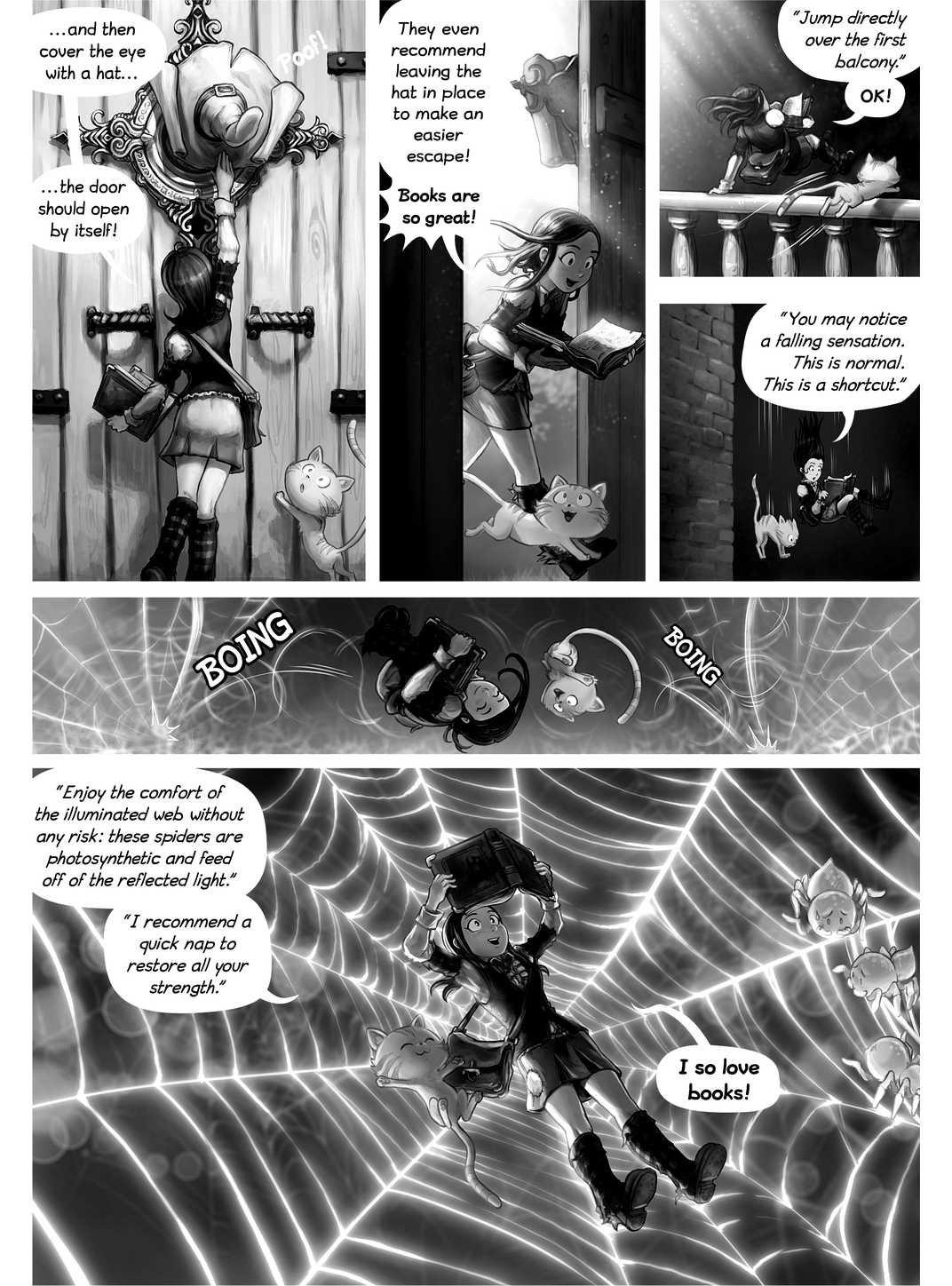
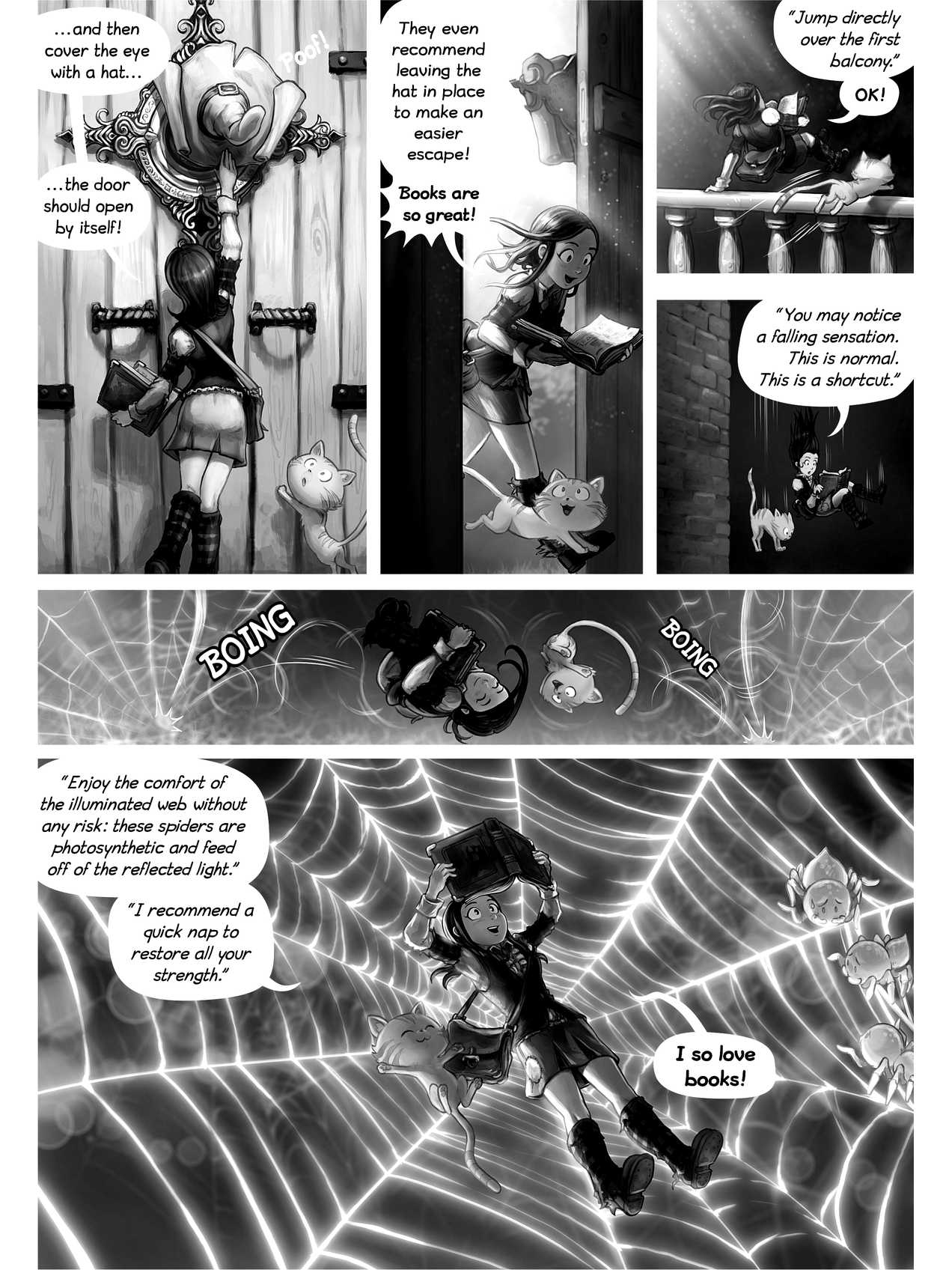
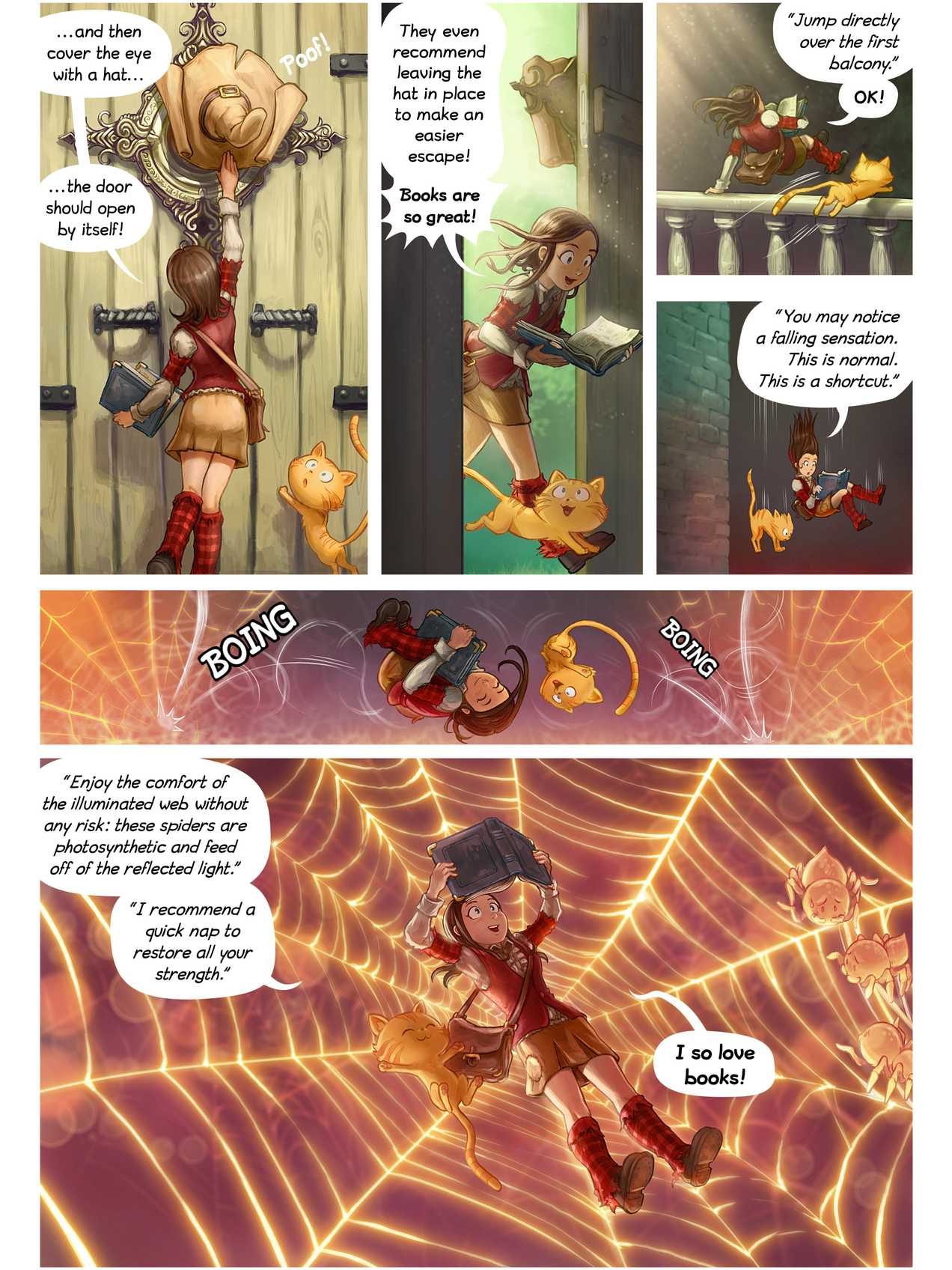
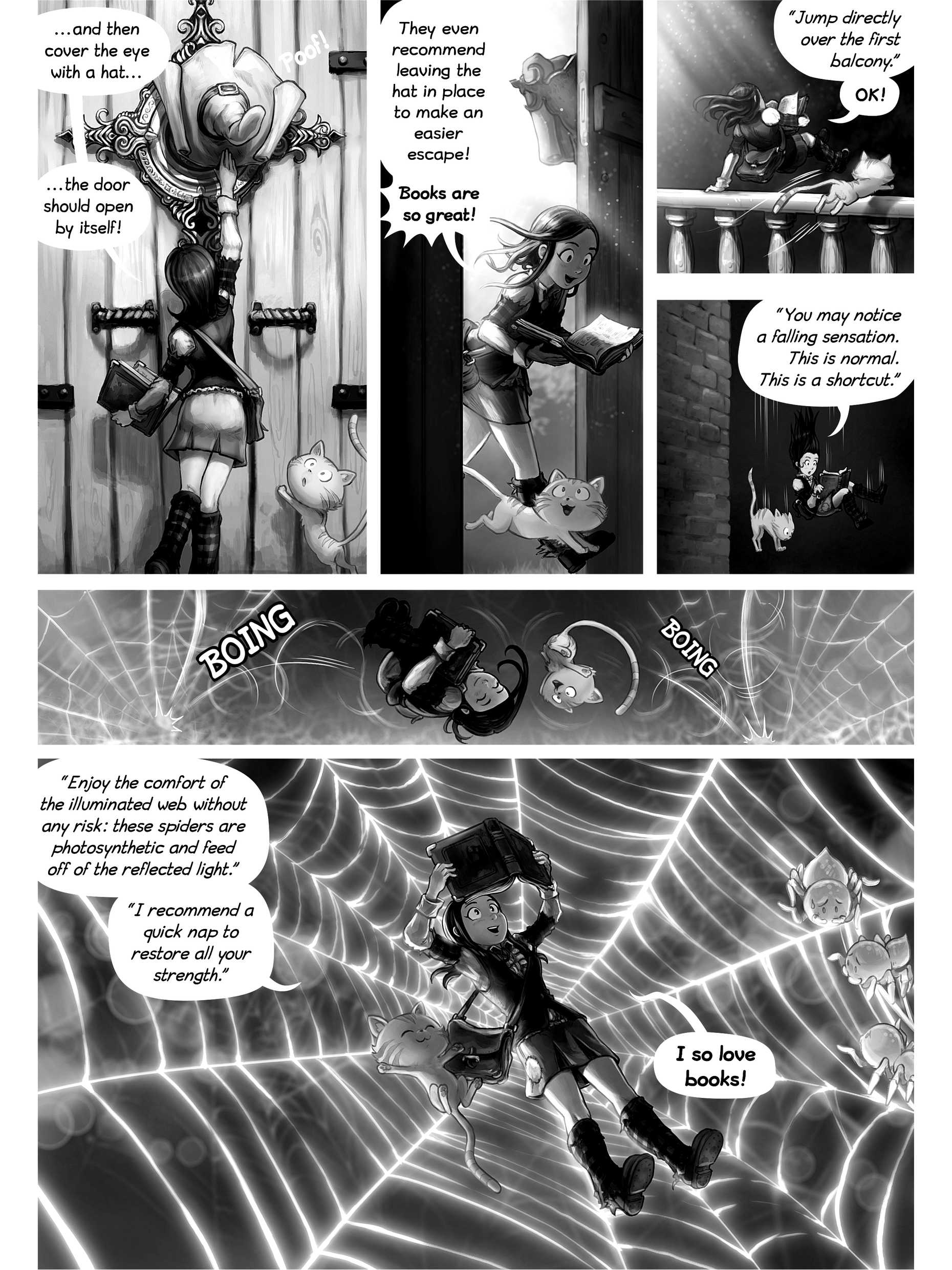
Here is page 2 of Pepper&Carrot episode 26 as MangaSendr builds it for each Kindle, drawn to scale.

  • The page as MangaSendr builds it for the Kindle Basic (2022 or newer, 6-inch): 1072 x 1448 pixels, in greyscale

    Kindle 6 in

    1072 x 1448 px

  • The page as MangaSendr builds it for the Paperwhite (2024 or newer, 7-inch): 1272 x 1696 pixels, in greyscale

    Paperwhite 7 in

    1272 x 1696 px

  • The page as MangaSendr builds it for the Colorsoft (2024 or newer, 7-inch): 1272 x 1696 pixels, in color

    Colorsoft 7 in

    1272 x 1696 px

  • The page as MangaSendr builds it for the Scribe (2022 or 2024, 10.2-inch): 1860 x 2480 pixels, in greyscale

    Scribe 10.2 in

    1860 x 2480 px

One page, measured: page 2 of Pepper&Carrot episode 26
WherePage size (px)Pages areSize of this page
Your file (JPEG)2481 x 3503Color2.5 MB
Paperwhite (2024 or newer, 7-inch)1272 x 1696Greyscale, contrast boosted231 KB
Colorsoft (2024 or newer, 7-inch)1272 x 1696Color229 KB
Kindle Basic (2022 or newer, 6-inch)1072 x 1448Greyscale, contrast boosted182 KB
Scribe (2022 or 2024, 10.2-inch)1860 x 2480Greyscale, contrast boosted401 KB
Paperwhite (2021, 6.8-inch)1236 x 1648Greyscale, contrast boosted221 KB

Before sizing this page, MangaSendr trimmed between 100 and 103 pixels of plain white border from each side. Pages from Pepper&Carrot by David Revoy, CC BY 4.0, converted by MangaSendr.

Add your Kindle once

It takes a few minutes. Any tool that emails files to a Kindle needs the same Amazon setting.

The Send to Kindle email guide walks through the Amazon side with screenshots.

  1. Step 1: Make a free account

    An email address and a password. You don't need a card.
  2. Step 2: Approve our address on Amazon

    In your Amazon account, under Preferences, Personal Document Settings, add delivery@mangasendr.com to the Approved Personal Document E-mail List.
  3. Step 3: Add your Kindle

    Paste your Kindle's Send to Kindle address and pick your model. We send a free 5-page test to check it works.

The files you can send

Each file can be up to 500 MB, and you can send up to 50 at once. They go out one after another, in order, from any browser, phone included.

File formats MangaSendr accepts
FileWorksGood to know
CBZYesThe usual comic archive: the page images in a ZIP.
ZIPYesA ZIP of page images. To send a folder of pages, zip the folder first.
CBRWhen it's a ZIP insideA CBR that is a RAR archive has to be extracted and zipped again first.
EPUBImage-based comic EPUBsPages are taken in file-name order. Text EPUBs, like novels, don't work.
PDFYesEach page is rendered at high resolution, then sized for your Kindle.
JPG, PNG, WebPYesEach image becomes its own book, so zip a chapter's pages into one file.

More on each format: CBZ and CBR, PDF, which format to pick. The free converter takes CBZ, ZIP and image files up to 200 MB without an account.

What happens to each page

Every page goes through these steps on its own, for the Kindle you picked.

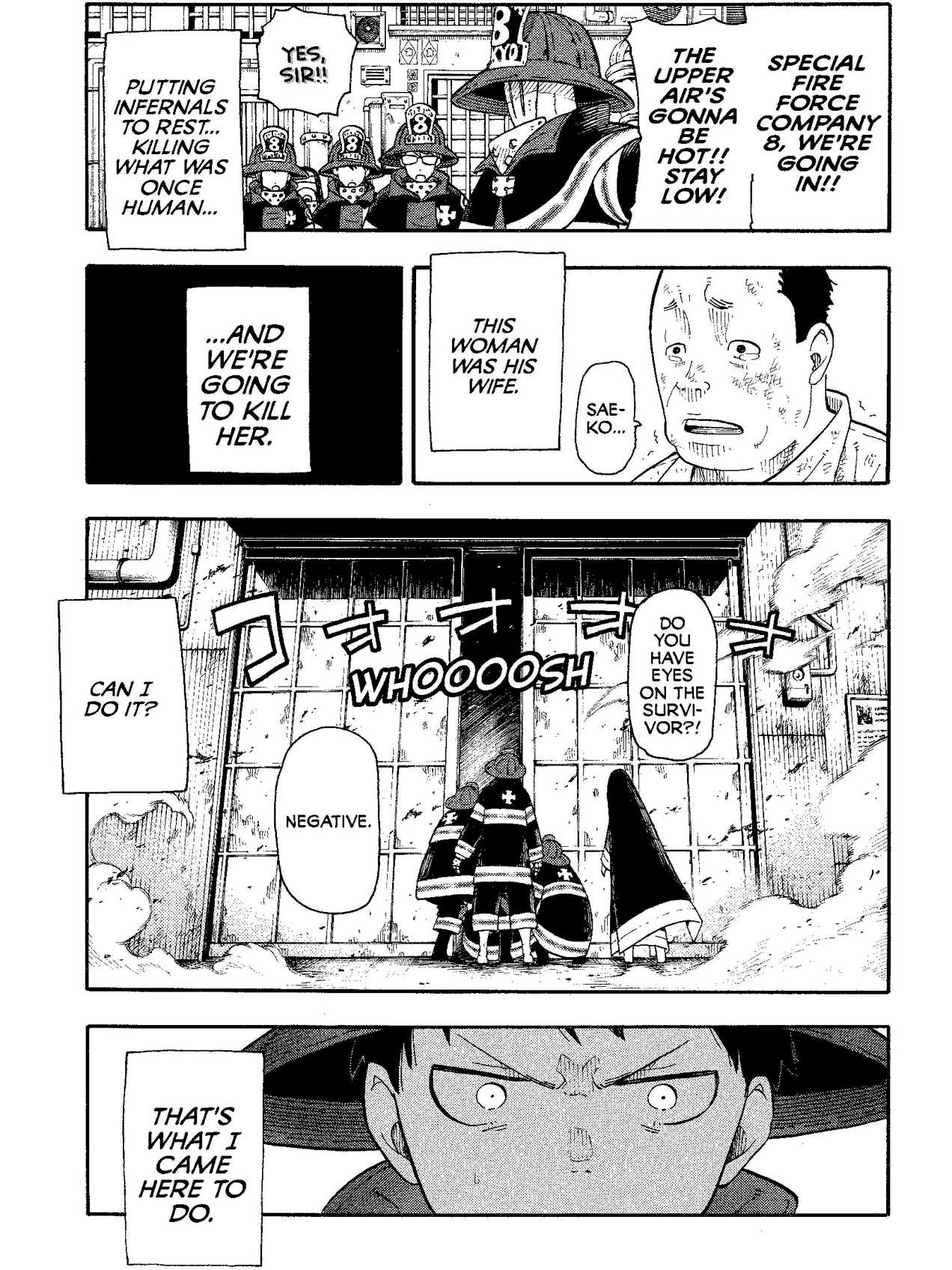
Page 63 of Fire Force volume 1 on a Kindle Paperwhite, copied over as it is: the whole page with its white borders, fitted to the screen, its solid blacks dark grey.

Copied over as it is

The art covers 68% of the screen.

The same page as MangaSendr sends it to a Kindle Paperwhite: the white borders are trimmed, the art fills the screen and its solid blacks are near black.

Sent with MangaSendr

The art covers 88% of the screen.

Page 63 of Fire Force volume 1 on two Kindle Paperwhites of the same size. Left, the file's page copied over as it is: the art covers 68% of the screen. Right, the page MangaSendr sent: the art covers 88% of the screen.
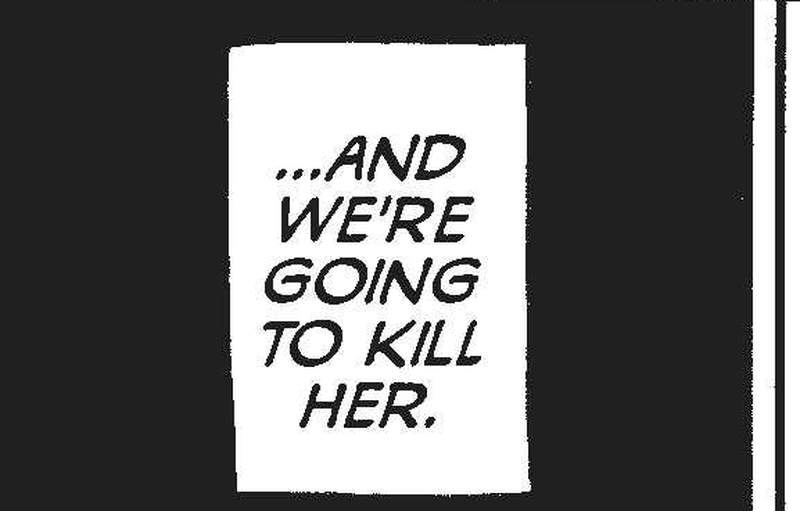
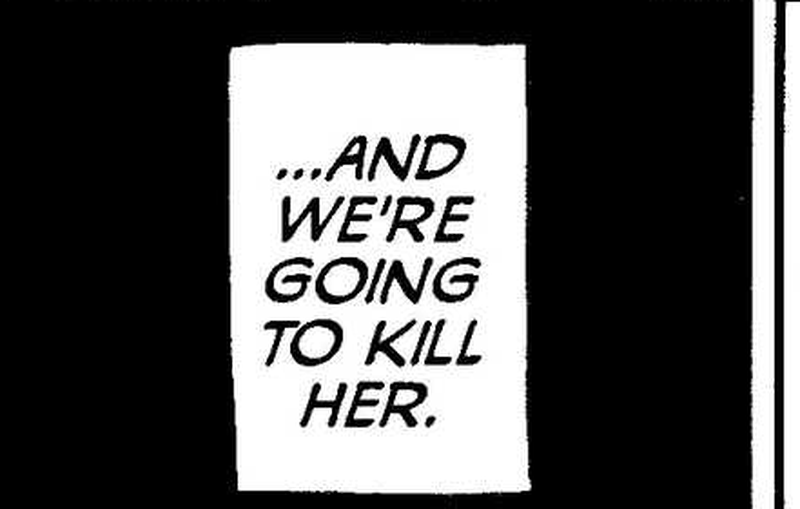
A black panel with the words ...AND WE'RE GOING TO KILL HER., enlarged from the volume's own page image: the black is dark grey.

In the file: dark grey

The same panel enlarged from the page MangaSendr sent: the black is near black.

Sent with MangaSendr: near black

The same black panel, enlarged: in the file, and as MangaSendr sent it.
Page 63 of Fire Force volume 1 on two Paperwhites. Left, the page from the volume's PDF, fitted to the screen as it is. Right, the page MangaSendr sent. Only plain white is trimmed, so a grey or patterned border stays, and a page shaped differently from the screen keeps thin white bars on two sides.
  1. Plain white borders are trimmed

    The art and the speech bubbles get as much of the screen as the page shape allows. More on white margins.

  2. Sized for your Kindle model

    Each page is built at the size listed for your model below. PDFs are rendered at high resolution first, so small lettering stays crisp.

  3. Greyscale or color

    Black-and-white Kindles get greyscale pages with the contrast turned up, so blacks come out deeper than in the file. It's on from the start, and you can turn it off in Settings. On a Colorsoft or Scribe Colorsoft, pages keep their color.

  4. Wide spreads turned sideways

    A page that is wider than it is tall is rotated to fill the screen. Turn your Kindle to read it.

  5. Right to left by default

    Pages turn like printed manga. For a Western comic, choose left to right when you upload in the web app.

  6. A cover and a title that sorts

    The first page becomes the cover, with the title printed at the bottom, and volumes are named so a series sorts in order.

Page sizes for each Kindle

You pick your model once, and every page is built at this size.

Page size MangaSendr uses for each Kindle model
KindlePage size (px)Color
Paperwhite (2024 or newer, 7-inch)1272 x 1696No
Colorsoft (2024 or newer, 7-inch)1272 x 1696Yes
Kindle Basic (2022 or newer, 6-inch)1072 x 1448No
Scribe Colorsoft (11-inch)1986 x 2648Yes
Scribe (3rd generation, 11-inch)1986 x 2648No
Scribe (2022 or 2024, 10.2-inch)1860 x 2480No
Paperwhite (2021, 6.8-inch)1236 x 1648No
Oasis (2017 to 2019, 7-inch)1264 x 1680No
Paperwhite (2015 to 2018, 6-inch)1072 x 1448No
Kindle Basic (before 2022, 6-inch)600 x 800No

The sizes for the 7-inch Paperwhite and Colorsoft and for the 11-inch Scribe models follow KCC's device profiles and are still being checked on real hardware.

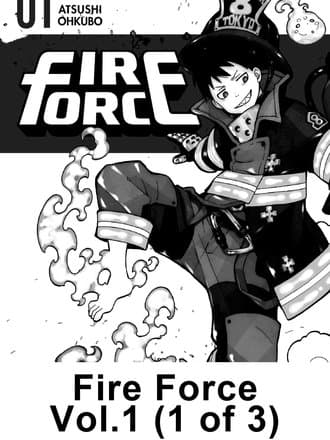
The cover MangaSendr made for Fire Force 01 (1 of 3): the first page, with the title and part number printed at the bottom

Fire Force 01 (1 of 3)

Parts 2 and 3 arrive the same way, as Fire Force 01 (2 of 3) and Fire Force 01 (3 of 3), with their own covers.

Big volumes arrive in parts

Amazon's Send to Kindle email takes up to 50 MB per message, and a full manga volume is often bigger. MangaSendr splits it into as many parts as it needs, each small enough for one email. Every part gets its own cover and a name like “Fire Force 01 (1 of 3)”, so the parts sit in order. Send to Kindle size limits.

It shows up in your Kindle library

Sent volumes appear under Documents in your Kindle library. That's where Amazon puts everything that arrives by Send to Kindle email, so they sit apart from the books you bought in the Kindle Store. Each one has its cover and a title that sorts, so a series lines up in order.

The Mac and Windows app

The desktop app is optional and free to install. It can watch a folder on your computer: about once an hour it checks for new CBZ, ZIP or EPUB files and sends them to your Kindle.

It can also copy volumes to a Kindle over USB. That needs Calibre or Kindle Previewer installed on the computer, and a Kindle that shows up as a drive when you plug it in.

It runs on Macs with Apple silicon (M1 or newer) and on Windows 10 or 11. Sending to your Kindle from the app uses your free delivery first, then the license or the monthly plan. Get the Mac and Windows app.

What MangaSendr doesn't do

  • It doesn't provide manga

    It works on files you already have. If you need some, here's where to get DRM-free manga and comics.

  • It doesn't send to a Kobo

    MangaSendr emails Kindles only. For another e-reader, choose Save as file in the web app and copy the EPUB or CBZ over. The EPUB's pages are one 6-inch Kindle size.

  • It can't open DRM-protected files

    Books bought in the Kindle Store and other locked files don't work. Only DRM-free files do.

  • It doesn't slice webtoons

    One long vertical strip stays one page. Chapters already cut into page-height images work. Webtoons on a Kindle.

What it costs

Your first volume is free and you don't need a card. After that it's $29 once, or $4.99 a month. Delivery to your Kindle is included either way.

See what's included

See your own volume on your Kindle

Your first volume is free and you don't need a card. After that it's $29 once.

Facts on this page checked on .