Which Paperwhite you have
Your Amazon account lists every registered Kindle by model under Manage Your Content and Devices, then Devices. Pick the matching model in MangaSendr and every page is built for that screen.
- 7-inch, 2024 or newer, including the 2026 model and the Signature Editions: 1272 x 1696.
- 6.8-inch, 2021: 1236 x 1648.
- 6-inch, 2015 to 2018: 1072 x 1448.
- Kindle Oasis, 2017 to 2019, a 7-inch Kindle with page-turn buttons: 1264 x 1680.
The 2026 Paperwhite has the same 7-inch screen size as the 2024 model, so it uses the same profile.
Page size
A page built at the screen's own size isn't rescaled on the Kindle, so line art and lettering stay as sharp as the source file allows. MangaSendr trims plain white borders first, then fits each page to the screen and fills what's left with white.
The 1272 x 1696 size for the 7-inch models follows the profile KCC, the free Kindle Comic Converter, uses for them. The 2021 and older sizes are the standard ones for those screens.
These sizes apply when MangaSendr sends a volume to your Kindle. Downloads from the free converter use the 6-inch size, 1072 x 1448, whatever your model.
Sending files to your Paperwhite
A Kindle doesn't open CBZ or CBR files, and Amazon's Send to Kindle doesn't accept them. MangaSendr turns a CBZ, ZIP, PDF, image-based EPUB or a set of images into a fixed-layout EPUB built for your Paperwhite, then emails it to the Kindle's Send to Kindle address.
- Make a free account and add your Kindle: its @kindle.com address and its model.
- In your Amazon settings, add MangaSendr's sending address to your approved list. You do this once. A free 5-page test file then lands on your Kindle so you can see it worked.
- Send your files from any browser, even on a phone. You can pick several volumes at once and they go out in order.
Big volumes arrive in parts small enough for Amazon's email, each with its own cover and named (1 of 3) and so on, so they sort in order. Most files show up within a few minutes. How MangaSendr works has the whole flow.
Reading direction
MangaSendr sets every volume to turn right to left by default, like printed manga. For a Western comic, choose Left to right (comics) under Reading direction when you upload the file in the web app. The free converter always builds right to left. More in reading manga right to left on a Kindle.
Two-page spreads on 7 inches
A two-page spread is wider than it is tall. MangaSendr turns any wide page 90 degrees instead of cutting it in half, so the whole picture fills the screen when you hold the Paperwhite sideways. The way it turns follows the reading direction. Reading double-page spreads covers the other options.
Contrast
Black-and-white Kindles get greyscale pages with a contrast boost, on by default. Faded scans come out darker. If a file already has deep blacks and you'd rather keep it as it is, turn the boost off in Settings. Fixing washed-out manga explains when it helps.
What's checked and what isn't
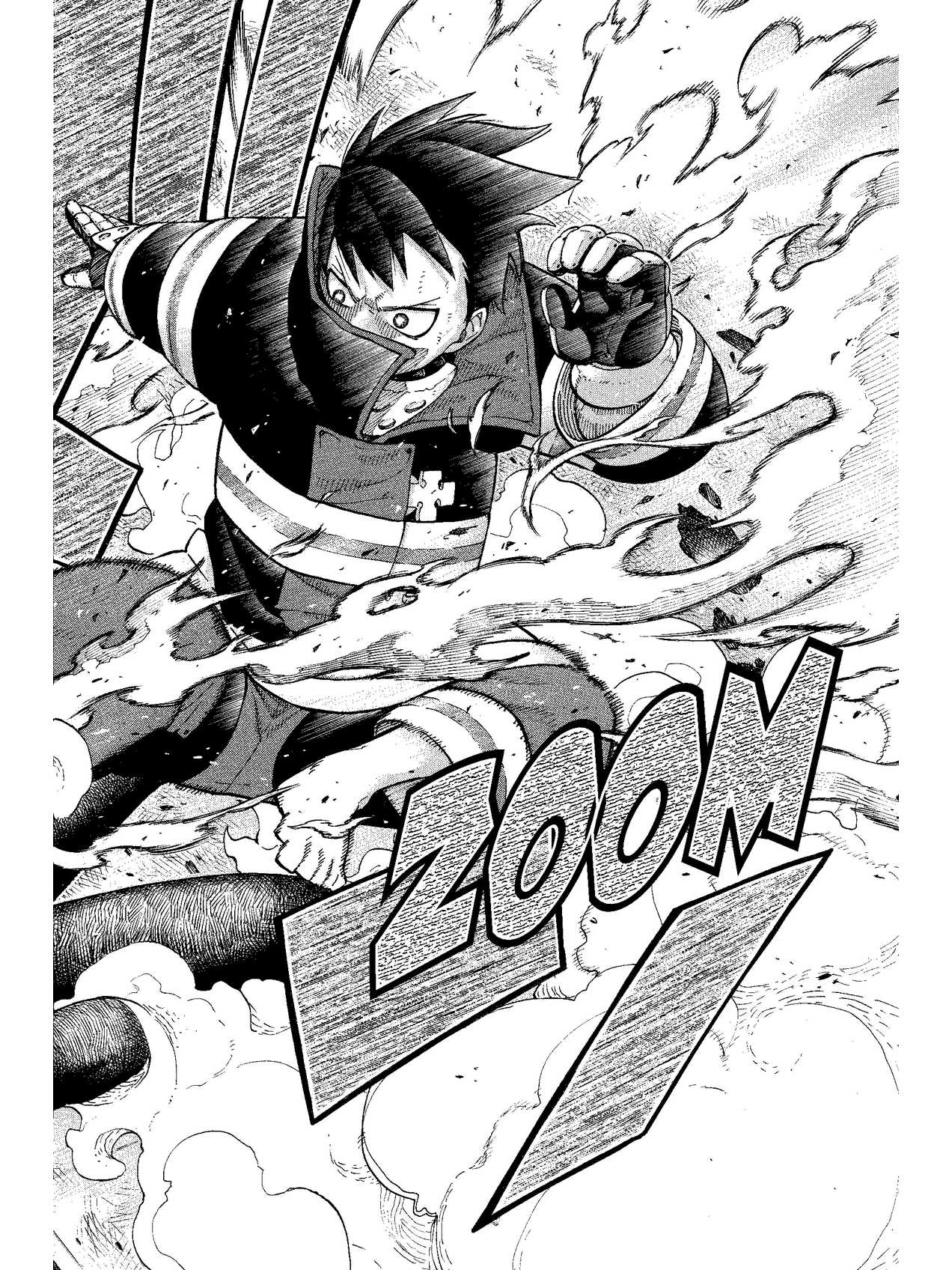
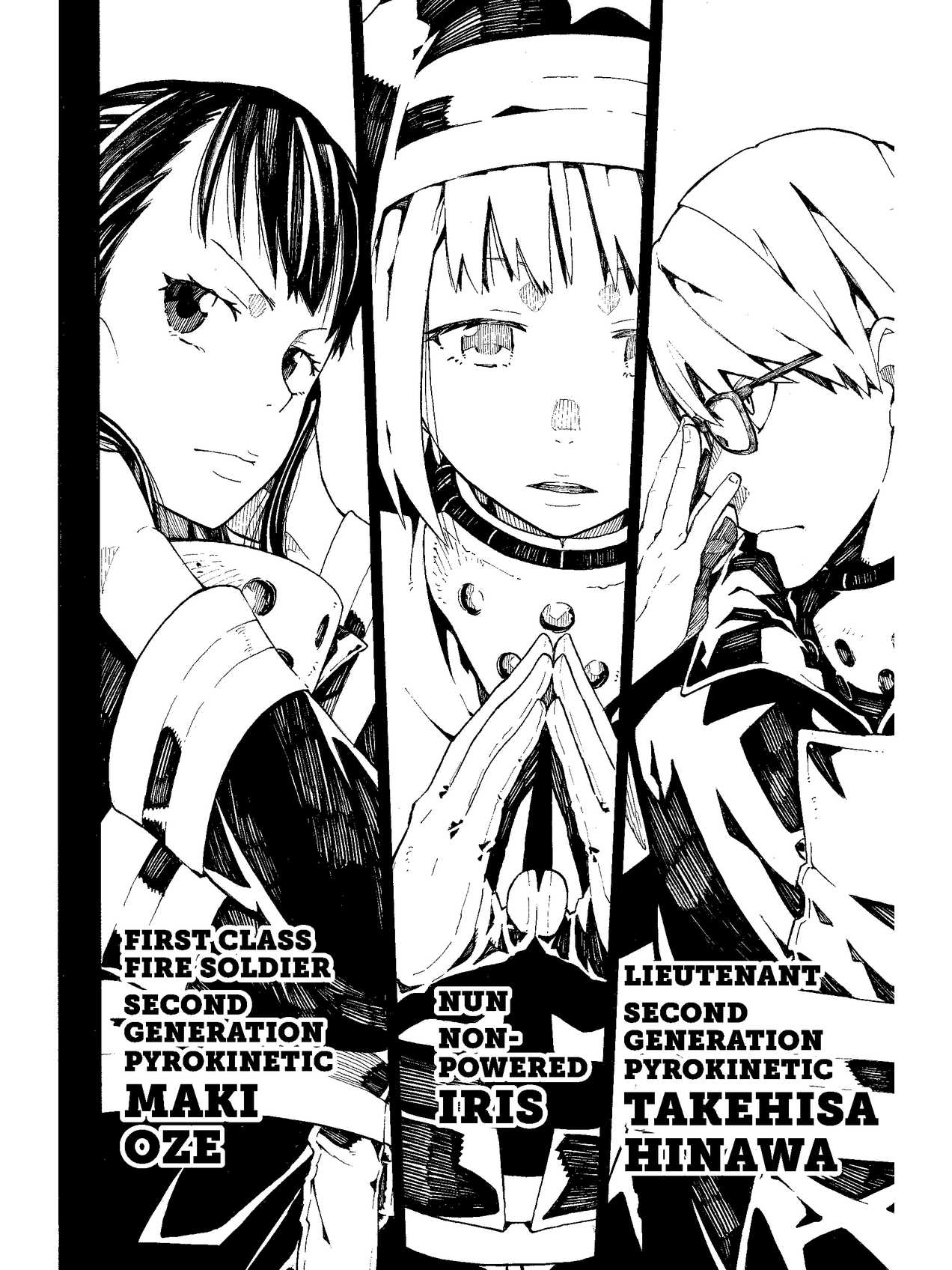
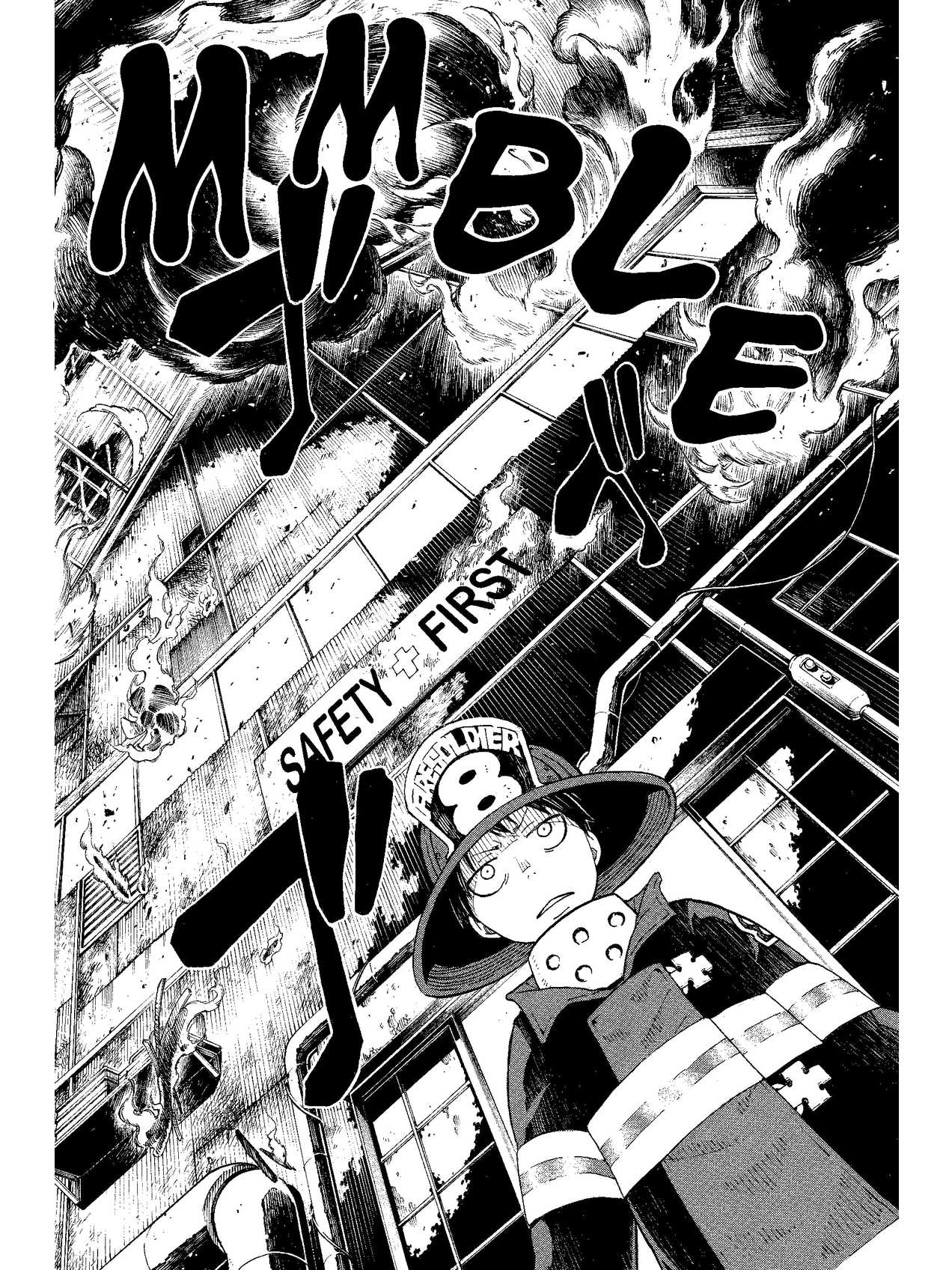
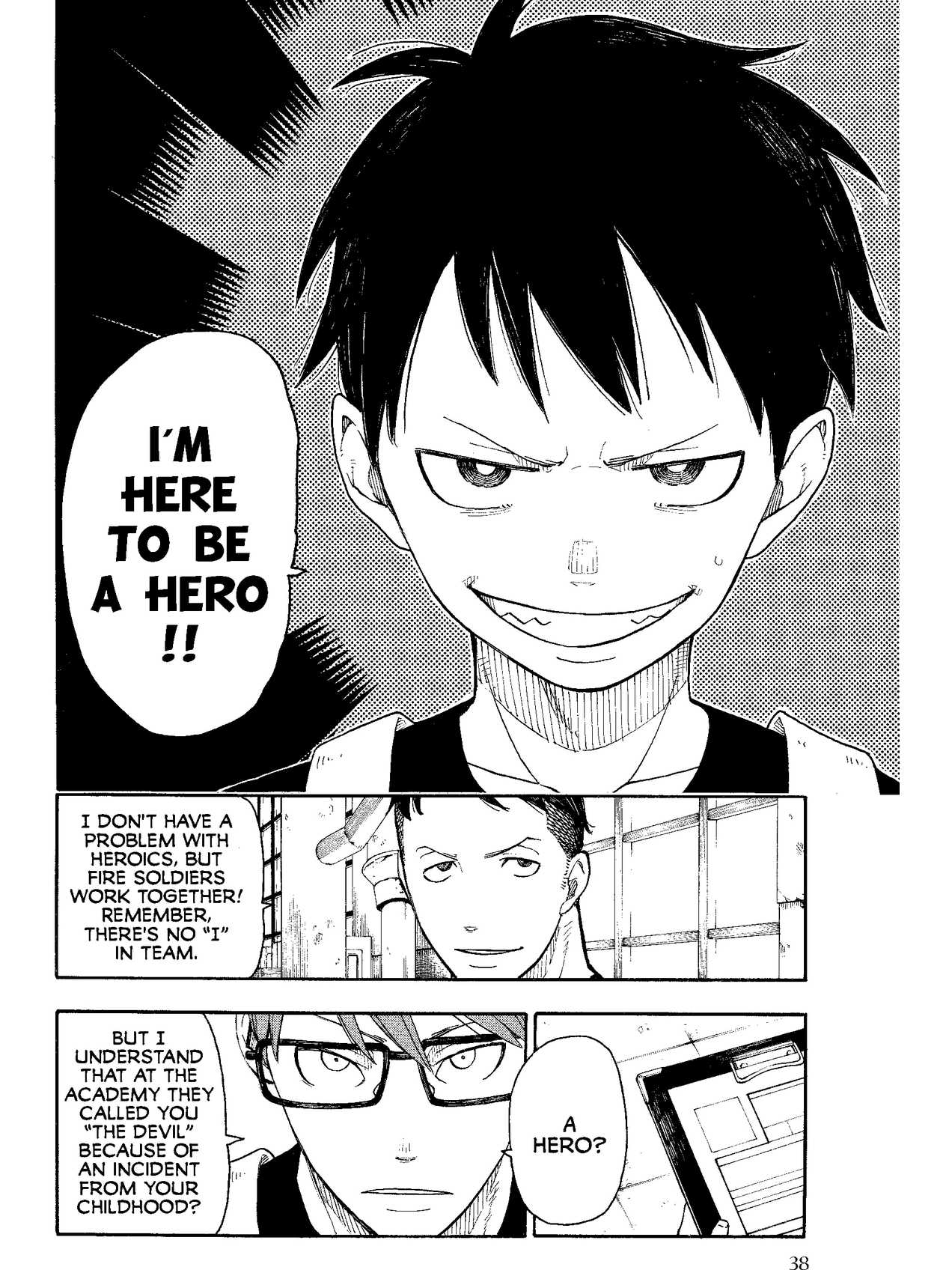
- The converter output. The pages at the top of this page are the real images MangaSendr puts in the EPUB for this Kindle, generated and checked on October 8, 2026.
- The page sizes. Each size in the page sizes list on this page says where it comes from. Sizes taken from KCC's profile are being checked on a real device.
- On the device itself. We haven't tested these pages on a real Kindle Paperwhite yet. This page will say so when we have.
Facts on this page checked on .