How to send manga to a Kindle by email
Send manga to your Kindle by email in 2026. Find your @kindle.com address, approve your sender, work around the 50 MB cap, and fix the silent delivery errors.
Sending manga to a Kindle by email is almost as simple as it sounds: attach a file, send it, and it appears. The snags are that Amazon has retired older file formats, caps attachment size, silently drops email from unapproved senders, and has moved the @kindle.com address around in its account pages.
This guide covers every Kindle that supports Send-to-Kindle email (the 6-inch Kindle, Paperwhite, Colorsoft, Scribe and Oasis, including the models Amazon announced in October 2026), and the errors you're likely to hit.
What "Send-to-Kindle by email" actually is
Every Kindle has a unique email address that ends in @kindle.com. Anything you email to that address gets converted by Amazon and pushed wirelessly to all of your registered devices, as long as it's an approved file format and the sender is on your approved list. You don't need a cable or any extra software.
For manga readers in 2026 that means you can:
- Email a freshly converted EPUB to that address and have it on the Kindle, usually within a few minutes
- Sync the same volume to a Paperwhite, a Scribe, and a phone Kindle app at once
- Skip plugging the Kindle into a computer
There are four catches, covered in order below.
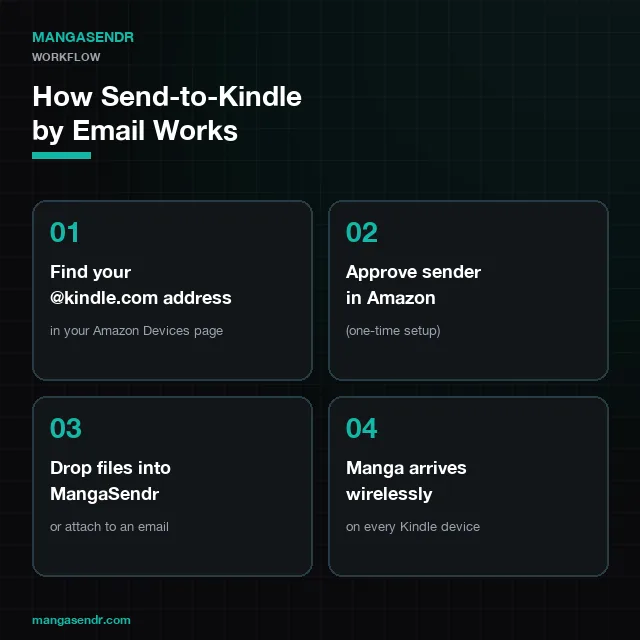
Step 1: Find your @kindle.com address (the new 2026 location)
Amazon has moved this setting more than once. The official entry point is now Amazon's Manage Your Content and Devices page, but the Send-to-Kindle email field is two clicks deeper. Here's the path:
- Sign in at amazon.com.
- Hover over Account & Lists and click Content Library.
- Click Devices in the top tab bar.
- Click on the device row (e.g. "Yuki's Paperwhite").
- Scroll to Device Summary and look for Send-to-Kindle Email. Copy the full address.
It will look something like yuki_92aa_kfx@kindle.com. The random suffix is intentional: Amazon does this to prevent strangers from guessing your delivery address.
If you only see "Personal Document Settings" and no email address, your Kindle has not finished its first registration. Open the device once on Wi-Fi and the address will appear in your account within a minute.
Step 2: Whitelist the sender (the step people miss)
This is where most "my chapter never arrived" problems come from. Amazon silently drops every email from a sender that isn't on your approved list, without a bounce or an error message.
Here is how to whitelist correctly:
- Stay in Content Library > Devices.
- Click Preferences in the top right.
- Scroll to Personal Document Settings.
- Under Approved Personal Document E-mail List, click Add a new approved e-mail address.
- Add the exact address you'll be sending from. That's your own Gmail, iCloud or work address, or
delivery@mangasendr.comif you use MangaSendr. - Save.
Common gotcha: if you have multiple Gmail accounts, alias addresses (+manga@gmail.com), or are sending from a phone email app that uses a different "From:" header than the address you whitelisted, the email will be silently rejected. Always whitelist the exact string Amazon will see in the From: field.
Step 3: Convert your manga to an accepted format
Amazon retired MOBI and AZW uploads in late 2024. The 2026 accepted format list for Send-to-Kindle is:
- EPUB (recommended for manga)
- PDF (works, but renders worse, as explained below)
- DOCX, TXT, RTF, HTML (text formats, so irrelevant for manga)
- JPEG, PNG, BMP, GIF (one image at a time, which is not what you want)
For manga, use EPUB. The alternatives:
- PDF keeps the original page layout, but volumes often pass 200 MB, pages scale poorly to e-ink screens, and page turns are slow.
- CBZ/CBR files are rejected by Amazon entirely. The Kindle can't read them. (We have a dedicated CBZ-to-Kindle workflow guide for this.)
- AZW3/MOBI worked for years, but Send to Kindle no longer accepts them. Re-convert old files to EPUB with Calibre or another converter.
To convert your CBZ collection to EPUB the manual way, follow our Calibre manga settings guide. The free MangaSendr converter also turns CBZ, ZIP or image files into an EPUB in your browser, with no account needed. And if you'd rather skip the conversion step altogether, MangaSendr converts each file you upload into an EPUB sized for your Kindle model before emailing it.
Step 4: Send the email
With the address copied and the sender whitelisted, sending is the easy part:
- Open your normal email client (Gmail, Outlook, Apple Mail, anything).
- Compose a new message to your
@kindle.comaddress. - Leave the subject line blank or write
convert. That's a legacy flag. Amazon ignores it now, but it doesn't hurt. - Attach your EPUB file. Maximum size: 50 MB. (More on that in the next section.)
- Send.
Usually within a few minutes, the volume appears on every Kindle registered to your Amazon account, ready to download from the Library tab. If your device is offline, it will sync the next time it connects to Wi-Fi.
Step 5: Handle the 50 MB Amazon limit
Amazon caps Send-to-Kindle email attachments at 50 MB. A typical tankōbon volume is 80 to 150 MB, and an omnibus or "deluxe" edition can be 300 to 500 MB. A bigger file fails with a generic error that doesn't say why.
You have three options:
- Compress the images harder. This is the worst option. Compressing the file by 70% turns inked screentones into gray bands, which shows on a 300 PPI screen.
- Split the volume by hand into files under 50 MB. It works, but it takes time, a cut can land in the middle of a spread, and the parts after the first have no cover.
- Let a tool split it for you. MangaSendr splits big files automatically into parts of roughly 26 MB, names them "(1 of 3)" and so on, and gives each part its own cover. It splits by size rather than at chapter breaks, so a part can end mid-chapter.
If you only send the odd volume, splitting by hand is tedious but workable. If you send several a week, it's worth letting a tool do it.
For a Kobo or another e-reader: the free MangaSendr converter turns CBZ, ZIP or image files into an EPUB or CBZ that you download and copy to a Kobo, an Android e-ink reader or another e-reader. No email setup required.
Step 6: Verify the chapter actually arrived
After you hit Send, check three things in this order:
- Your "Sent" folder. Confirm the email actually left your client. Most "stuck" emails are sitting unsent.
- Your "Documents" view on the Kindle. Open the device, pull down to refresh, and look in the Library. New documents appear under the same shelf as Kindle Store books.
- Amazon's "Manage Your Content" page. If the volume is in the cloud here, it was accepted. If it's missing, the email was rejected at the gateway. That's almost always a sender whitelist problem, so go back to Step 2.
If you whitelist a sender and the first email after whitelisting still fails, give Amazon a few minutes to pick up the change, then resend.
Common errors and how to fix them
"Conversion failed" email reply from Amazon. Your file is corrupt, password-protected, or in an unsupported format. Re-convert to EPUB and resend.
Email sent but nothing on Kindle, no error in your inbox. Sender not whitelisted. This is the most common cause. Re-check the exact address in Personal Document Settings.
Email bounces with "Message size exceeds outgoing message size limit." Your email provider is rejecting the attachment, not Amazon. Most providers cap at 25 MB. Use Amazon's web Send-to-Kindle uploader for 49 MB files, or let MangaSendr split the file into parts small enough for email.
Volume arrives but pages are huge / tiny / cropped. Your EPUB wasn't built for your Kindle's panel resolution. Use a Calibre profile that targets your specific model, or let MangaSendr size the pages for the Kindle model you picked at setup.
It worked yesterday and stopped working today. Check that your sender is still on the approved list. If it has dropped off (for example after changes to your Amazon account), re-add it and it'll start working again.
The MangaSendr alternative
We built MangaSendr after hitting every error in the list above on our own Kindles. Instead of six manual steps for every volume, the workflow becomes:
- Sign up for an account. No credit card needed.
- Approve
delivery@mangasendr.comonce in Amazon Personal Document Settings. - Register your Kindle once. Paste the @kindle.com address and pick the model from a list. Setup sends a free 5-page sample so you can check it works.
- Upload the CBZ, ZIP, EPUB or PDF files you own, up to 50 at once. The conversion, splitting, and email happen on our servers.
After that, most files land on your Kindle within a few minutes, sized for your model, with plain white borders trimmed and pages in right-to-left order. The cover is the first page of your file. If you'd rather not upload files yourself, the desktop app can watch a folder on your computer and send new CBZ, ZIP, EPUB or PDF files from it about once an hour while it's running.
Your first delivery is free. Pricing covers what's included after that.
If you're new to the app, the 5-minute MangaSendr quickstart walks you through the first delivery end to end.
Frequently asked questions
Is sending manga to Kindle by email free?
Yes, on Amazon's side. Send-to-Kindle is a free Amazon feature. The only thing you might pay for is the conversion software you use to turn CBZ into EPUB, and there are free options for that too: Calibre, KCC, and the MangaSendr converter.
How long does it take for a manga to arrive on my Kindle after I send the email?
Usually within a few minutes if your Kindle is online. If the device is asleep on Wi-Fi, the next page-turn or pull-to-refresh will pick it up. If the Kindle is offline, it syncs the next time it connects.
Can I send manga to a Kindle from my phone?
Yes. Open any email app on iOS or Android, attach the EPUB, and send it to your @kindle.com address. The same 50 MB limit applies. If you don't want to manage attachments on your phone, MangaSendr's web app works in mobile Safari and Chrome: upload a file and tap Send to Kindle.
Why did Amazon retire MOBI uploads?
Amazon consolidated the e-book pipeline around EPUB to align with the rest of the publishing industry. The legacy MOBI format had no benefits over modern EPUB and added an extra conversion step on Amazon's servers. Re-convert any old MOBI files with Calibre.
Does Send-to-Kindle work with the Kindle Colorsoft and Scribe?
Yes. The Scribe has the biggest screen of any Kindle, so a poorly resized EPUB will look soft. Size pages for your exact model: 1860×2480 for the 10.2-inch Scribe (2022 or 2024), and 1986×2648 for the 11-inch Scribe (3rd generation) and Scribe Colorsoft, the size KCC uses for them. The Colorsoft (7-inch, and the Scribe Colorsoft) preserves color in EPUBs that contain RGB images, so don't dither color manga to monochrome before sending.
What happens if I send the same manga twice?
Amazon de-duplicates by filename. If you re-send One Piece Vol 108.epub it will overwrite the existing copy on every device. If you re-send a file with a different name (One Piece Vol 108 (v2).epub), you'll end up with two volumes on your shelf.
Related guides
- How to send manga files over the 50MB Send-to-Kindle limit. How to split oversized volumes and omnibuses.
- How much storage do you need for manga on Kindle? (2026 numbers). Pick the right device for your library size.
- How to send CBZ and CBR manga to Kindle. Start here if your files aren't EPUB yet.
- Best Calibre settings for manga. The manual conversion path, properly tuned.
- MangaSendr quickstart (5 minutes). The MangaSendr route, end to end.
- Free CBZ to EPUB converter. Convert CBZ, ZIP or image files to EPUB in your browser, no account needed.
Try it with one of your own volumes
Send a CBZ, EPUB or PDF you have. MangaSendr sizes it for your Kindle model and sends it for you.
You don't need a card, and there's nothing to install.