How to Send Manga to Kindle in 5 Minutes (2026 Quickstart)
The fastest way to get manga on a Kindle in 2026. Sign up, drop a CBZ, EPUB, PDF, or folder of images, register your Kindle, hit send. No Calibre, no KCC, no USB cable.
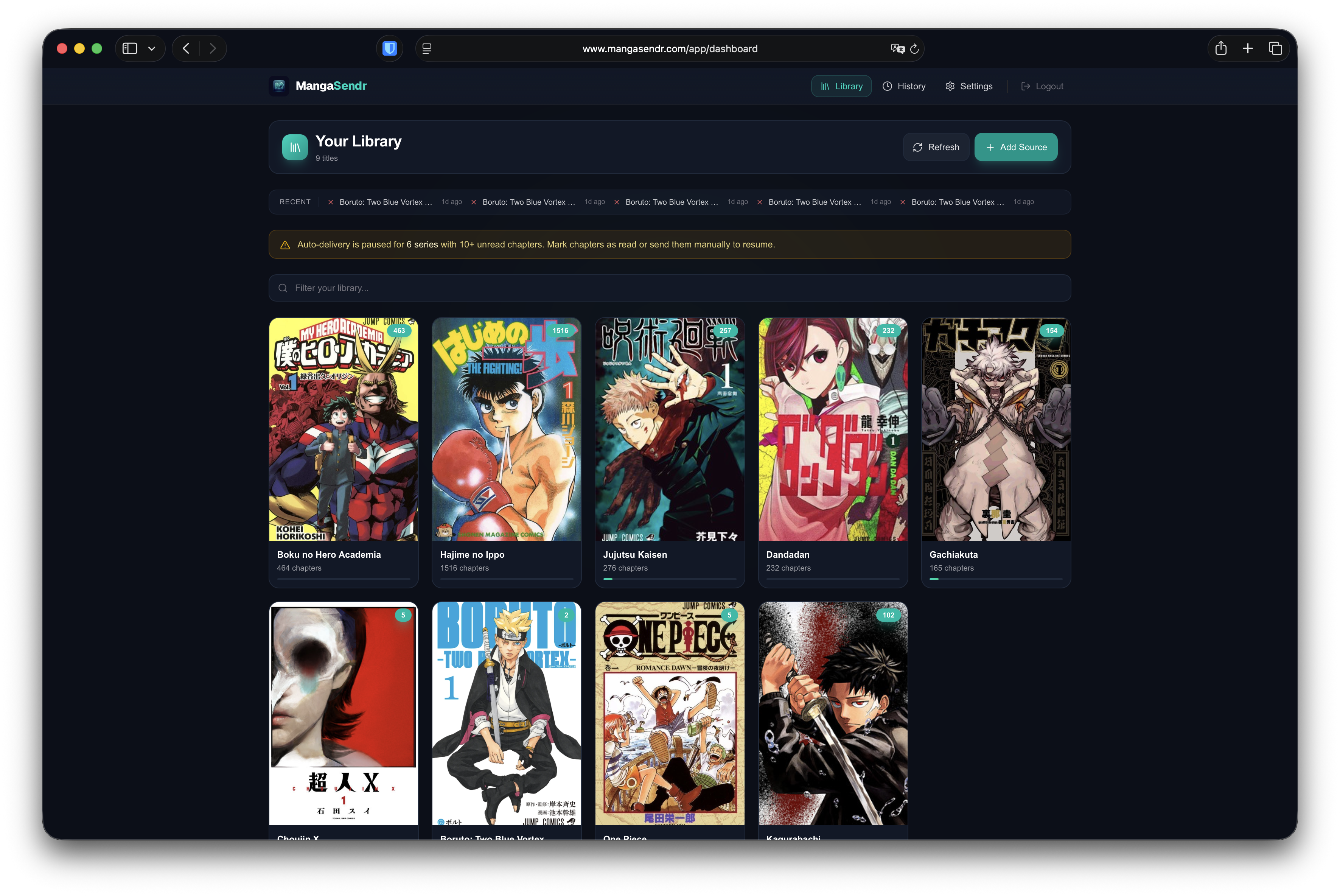
The fastest way to get manga on your Kindle in 2026 is MangaSendr. Drop a file, add your Kindle's email address, hit send. The volume arrives on your e-reader about a minute later as a properly formatted EPUB. No Calibre, no Kindle Comic Converter, no USB cable.
If you want the long version with screenshots of every screen, image processing details, and a full troubleshooting section, read the complete walkthrough instead. This page is the 5-minute TL;DR.
What you need before you start
- Any Kindle that supports Send-to-Kindle email (Basic, Paperwhite, Oasis, Scribe, or Colorsoft).
- Your Kindle's
@kindle.comaddress. Find it in Amazon → Manage Your Content and Devices → Preferences → Personal Document Settings. - A manga file in CBZ, CBR, EPUB, PDF, or a folder of images. Anything you already own or downloaded legally.
That's everything. No installs, no payment.
Add manga to Kindle in 5 steps
- Sign up for free at mangasendr.com. Email + password. Your first 7 days are free with everything unlocked, no credit card.
- Drop your file. Drag a CBZ, CBR, EPUB, PDF, or a folder of images into the web app. We pick up the metadata, pull a cover from AniList, and queue the conversion automatically.
- Register your Kindle in Settings → Devices → Add Device. Name it, paste the
@kindle.comaddress, pick the model from the dropdown. - Whitelist
delivery@mangasendr.comin Amazon's Personal Document Settings under Approved Personal Document E-mail List. Skip this and Amazon silently drops every email we send. - Click Send. Pick the device, confirm. The file is converted to a Kindle-perfect EPUB on our servers and emailed to your Kindle. It arrives in 60 to 90 seconds.
That's the entire workflow. Every file you drop follows the same five clicks, and the second one is free (the app remembers the device).
Want hands-free delivery? Install the desktop app.
If your manga files land in a specific folder on your computer (Downloads, a cloud-sync folder, an NAS mount), the MangaSendr desktop app for macOS and Windows watches that folder for you. New CBZ, EPUB, PDF, or image folders get picked up, converted, and emailed to your Kindle automatically, with no clicks. Same account, same settings.
The 3 things people miss on day one
- Whitelist the sender address. Amazon silently drops emails from unapproved senders. No bounce, no error, just nothing on your Kindle. If your first delivery doesn't arrive, this is almost certainly why.
- Pick your actual Kindle model. The wrong resolution makes pages slightly blurry. The Scribe is
1860 × 2480, the modern Paperwhite is1236 × 1648, the Colorsoft is1236 × 1648color. Pick the right one. - Drop a folder instead of a zip if your pages are loose. If you have a folder of JPG/PNG pages from a scanlation, just drag the folder. MangaSendr treats it as a single volume and packs the EPUB for you.
What costs what
- Free trial: 7 days with everything unlocked (manual sends, watched-folder auto-delivery, and the desktop app), no credit card required.
- Subscribed: $2.99/mo or $24.99/yr — unlimited deliveries, multi-device fan-out, priority conversion queue, Discord notifications.
See the workflow in action
MangaSendr
The only tool you'll ever need for your
digital library.
Mini FAQ
Can you add manga to a Kindle without a computer?
Yes. MangaSendr works in a phone browser. The conversion and delivery happen on our servers, so all you do is drop a file and tap Send. There's nothing to install on the phone or the Kindle.
What format does the Kindle accept for manga in 2026?
EPUB. Amazon retired the MOBI / AZW upload pathway for Send-to-Kindle. MangaSendr converts every file to EPUB by default so you don't have to think about it.
Does this work for the Kindle Scribe and Colorsoft?
Yes. Both have dedicated model presets in MangaSendr. The Scribe gets a high-DPI render for its 10.2-inch screen. The Colorsoft skips dithering and ships color pages natively for color manga and webtoons.
Which file formats does MangaSendr accept?
CBZ and CBR archives, EPUB, PDF, and folders of images (JPG, PNG, WebP). Drop any of these into the web app or into a watched folder on the desktop app.
What about CBZ files I already own?
Drop them straight into the web app and they convert in seconds. If you have a whole collection sitting in one folder, install the desktop app and point it at that folder: it picks up every file and auto-delivers them without you doing anything.
Done. Now what?
- Read the full walkthrough for image processing, multi-device fan-out, and the troubleshooting section.
- Read about watched-folder auto-delivery for exactly how the desktop app picks up new files from disk.
- Or just start your free account and figure it out as you go. It's built to be obvious.
Ready to automate your library?
Ditch the USB cable for good — your files, converted and delivered to your Kindle in minutes.
Start Free Trial