How to Send Manga to Kindle with MangaSendr: The Complete 2026 Guide
How to send manga to a Kindle with MangaSendr. Drop a CBZ, EPUB, PDF, or folder of images, register your Kindle, and the file arrives on your e-reader a minute later. Covers Send-to-Kindle EPUB delivery, watched-folder auto-delivery, image processing, and troubleshooting.
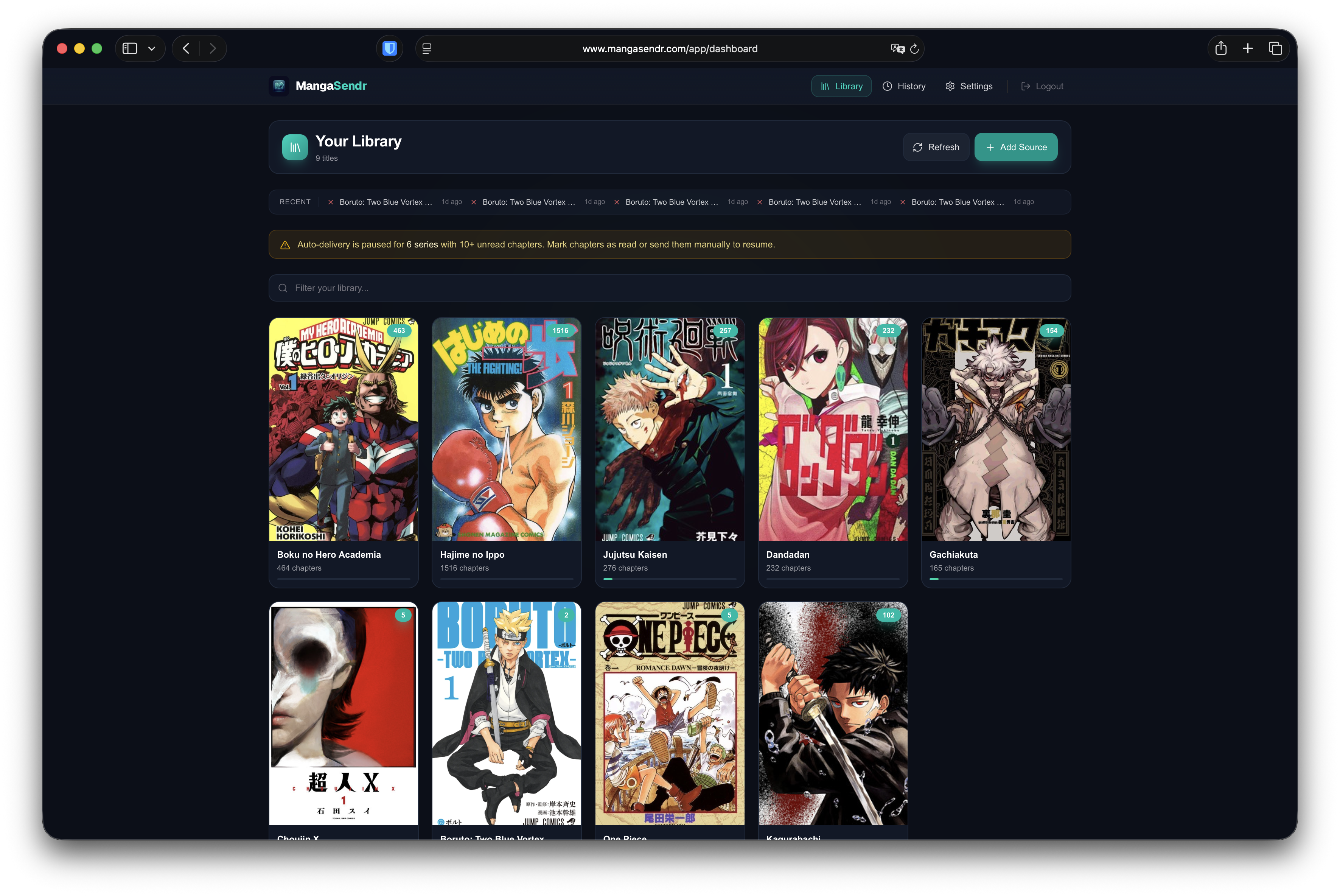
Getting manga onto a Kindle the manual way means downloading CBZ files, converting them in Kindle Comic Converter, importing into Calibre, plugging in a USB cable, and dragging files into a documents folder. Doing that once is fine. Doing it every time you want to read something new, for 20 volumes, is the reason most people give up.
This guide shows you how to send manga to a Kindle with MangaSendr: drop a CBZ, EPUB, PDF, or folder of images, register your Kindle, and the file arrives on your e-reader about a minute later. No KCC, no Calibre, no USB cable. Works on every modern Kindle (Basic, Paperwhite, Oasis, Scribe, Colorsoft) and uses Amazon's Send-to-Kindle email service under the hood.
By the end you'll know how to sign up, drop your first file, register your Kindle, deliver your first chapter, set up the desktop app for watched-folder auto-delivery, tune the image processing for your specific device, and troubleshoot the things that occasionally go wrong. If you've never opened MangaSendr before, start at step 1. If you're already set up, jump to Things power users learn the hard way or the troubleshooting section.
Want the 5-minute version instead? Read the MangaSendr quickstart.
Why the old Calibre + KCC + USB workflow is broken in 2026
Most "how to add manga to Kindle" tutorials still describe a 2014-era pipeline: download a CBZ, convert it to MOBI in KCC, import into Calibre, plug in a USB cable, eject the device, repeat forever. There are three problems with that workflow today.
- Amazon retired MOBI uploads. Send-to-Kindle no longer accepts new MOBI or AZW files. The supported target format for sideloaded manga is now EPUB, and any tutorial that still tells you to convert to MOBI is shipping you a file Amazon will reject.
- Manual conversion does not scale. Converting one volume of Berserk takes 2 minutes. Doing 20 volumes on a weekend means 40 minutes of manual file-shuffling instead of reading.
- USB transfers break WhisperSync. Files dragged into the Kindle's
documentsfolder over USB are treated as local files. Amazon's cloud doesn't know they exist, so cross-device reading progress doesn't sync. The fix is to use Send-to-Kindle email instead, which is exactly what MangaSendr automates.
MangaSendr removes all three problems. Drop a file, we convert it for your exact device, we email it to your Kindle over Send-to-Kindle. Sixty seconds end-to-end.
Step 1: Sign up for a free MangaSendr account (60 seconds)
Head to mangasendr.com and click Get Started. Email and password. No credit card, no download, no email confirmation step. Every new account starts with a free 7-day trial with everything unlocked, which is enough to run your whole backlog through the full pipeline before deciding if it's worth subscribing.
The moment you land on the dashboard, your library is empty and the upload area is front and center.
Step 2: Drop your first manga file
Drag a file into the upload area. MangaSendr accepts:
- CBZ / CBR archives of chapters or volumes.
- EPUB files from any source.
- PDF scans (we unpack the pages and re-optimize them for e-ink).
- A folder of JPG / PNG / WebP images — we treat it as a single volume.
We pick up cover art and metadata from AniList automatically, so the volume lands in your library with the right title, author, and synopsis instead of a generic filename.
Once the file is uploaded, you'll see it in the library with a "Convert & Send" button.
Step 3: Register your Kindle (Paperwhite, Oasis, Scribe, or Colorsoft)
Before you can deliver anything, MangaSendr needs to know where to send the file. Open Settings → Kindle Devices → Add Device.
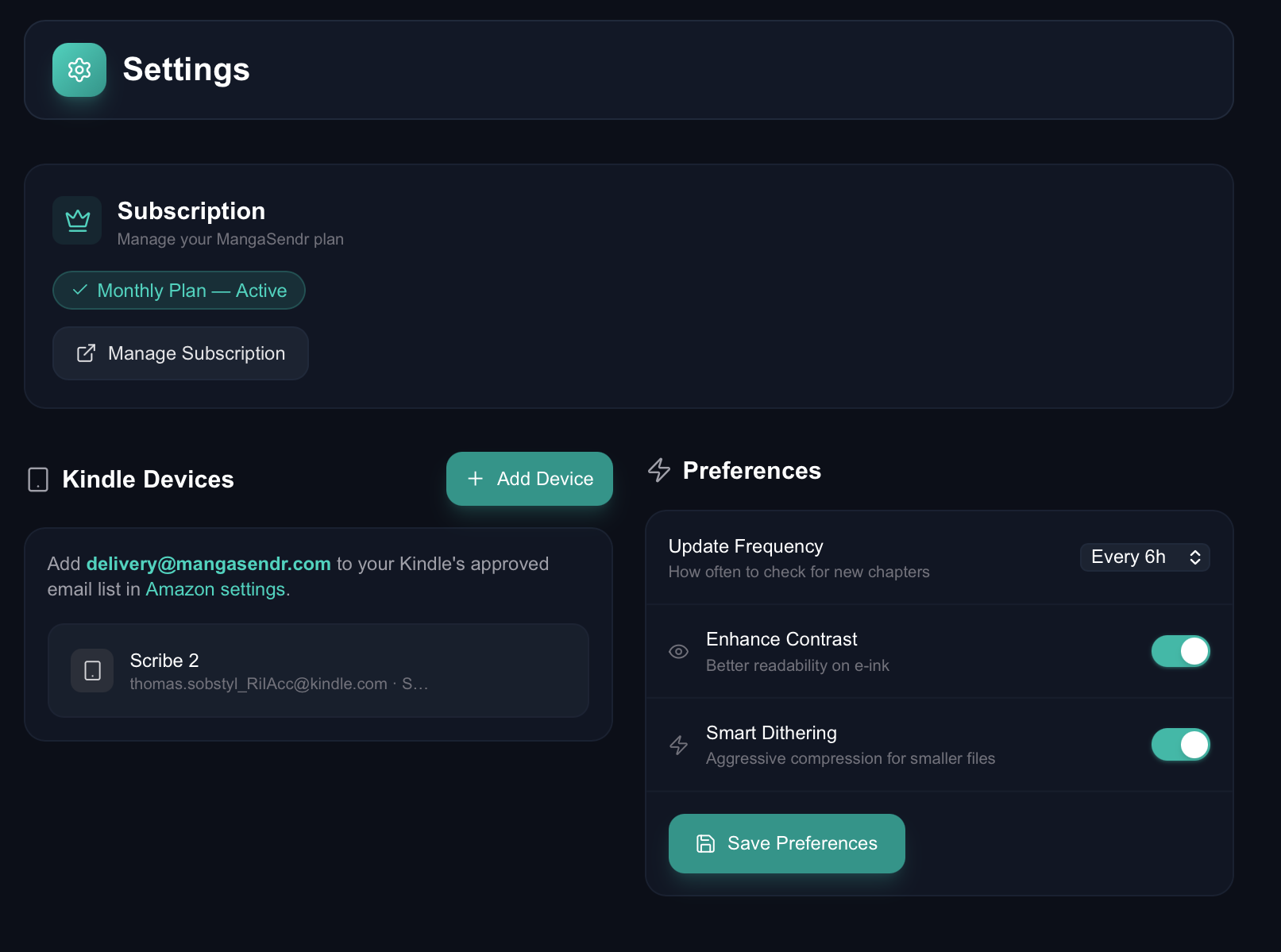
You'll fill in three things:
- Name. Anything memorable. "Bedside Paperwhite", "Train Scribe". It's just a label.
- Send-to-Kindle email. The
@kindle.comaddress Amazon assigned to your device. Find it in Manage Your Content and Devices → Preferences → Personal Document Settings. - Model. Pick the closest match from the list: Basic, Paperwhite (any generation), Oasis, Colorsoft, or Scribe. This sets the resolution we resize images to. Picking the wrong one isn't catastrophic, but pages will be slightly blurry on a high-DPI device if you tell us it's a low-DPI one.
The most-missed step is whitelisting our sender address with Amazon. Open Amazon → Manage Your Content and Devices → Preferences → Personal Document Settings → Approved Personal Document E-mail List and add delivery@mangasendr.com. Without this, every email we send to your Kindle gets silently dropped: no bounce, no error, just nothing on the device. We surface a reminder banner at the top of the device list. Don't ignore it.
Notes for the Kindle Scribe and Colorsoft
The Scribe (10.2-inch) and Colorsoft (color e-ink) work the same way, just with different resolutions and image processing defaults:
- Scribe. The 1860 × 2480 panel benefits from a high-DPI render. Pick "Scribe" in the model dropdown. Smart Dithering is still useful but the visible difference is small.
- Colorsoft. Color manga (and color webtoons) render natively without dithering. We disable Smart Dithering automatically when you tick the "Color e-reader" toggle on the device.
Step 4: Send your first file to Kindle
Click the file in your library to open the volume detail page.
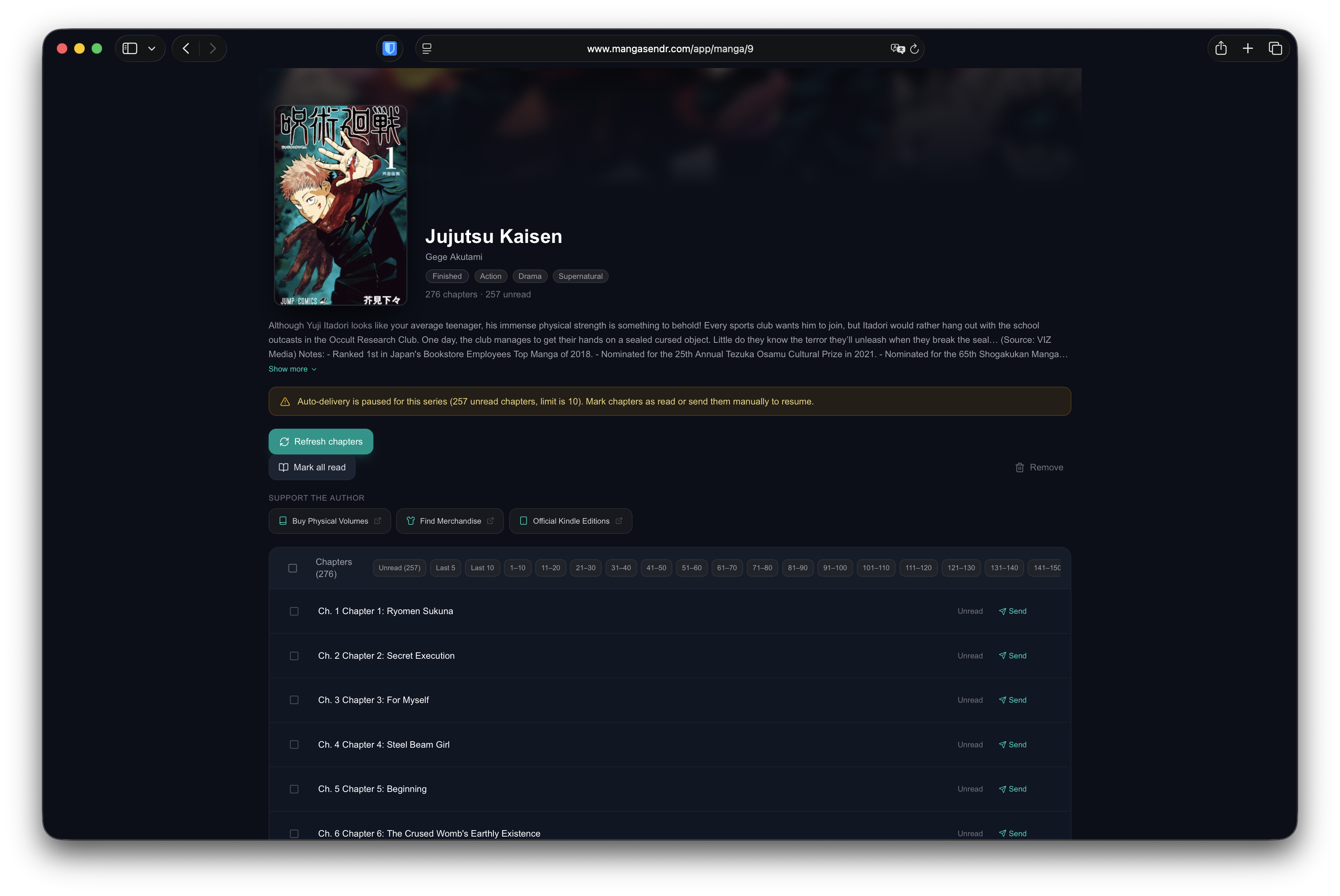
This is where the real work happens. You get:
- Cover art and metadata at the top, automatically enriched from AniList.
- Chapter list if the file contained multiple chapters, with read/unread state.
- Device selector so you can pick which Kindle to send to (or leave it on the default).
- Bulk select. If the file has multiple chapters, click one, shift-click another to grab a range, then Send the whole batch in one go.
To send it to your Kindle: click Send, pick the device, confirm. A delivery job goes into the queue, the file gets converted to a Kindle-friendly EPUB, the images get optimized for your device's screen, and the file lands in your Kindle inbox a minute or two later.
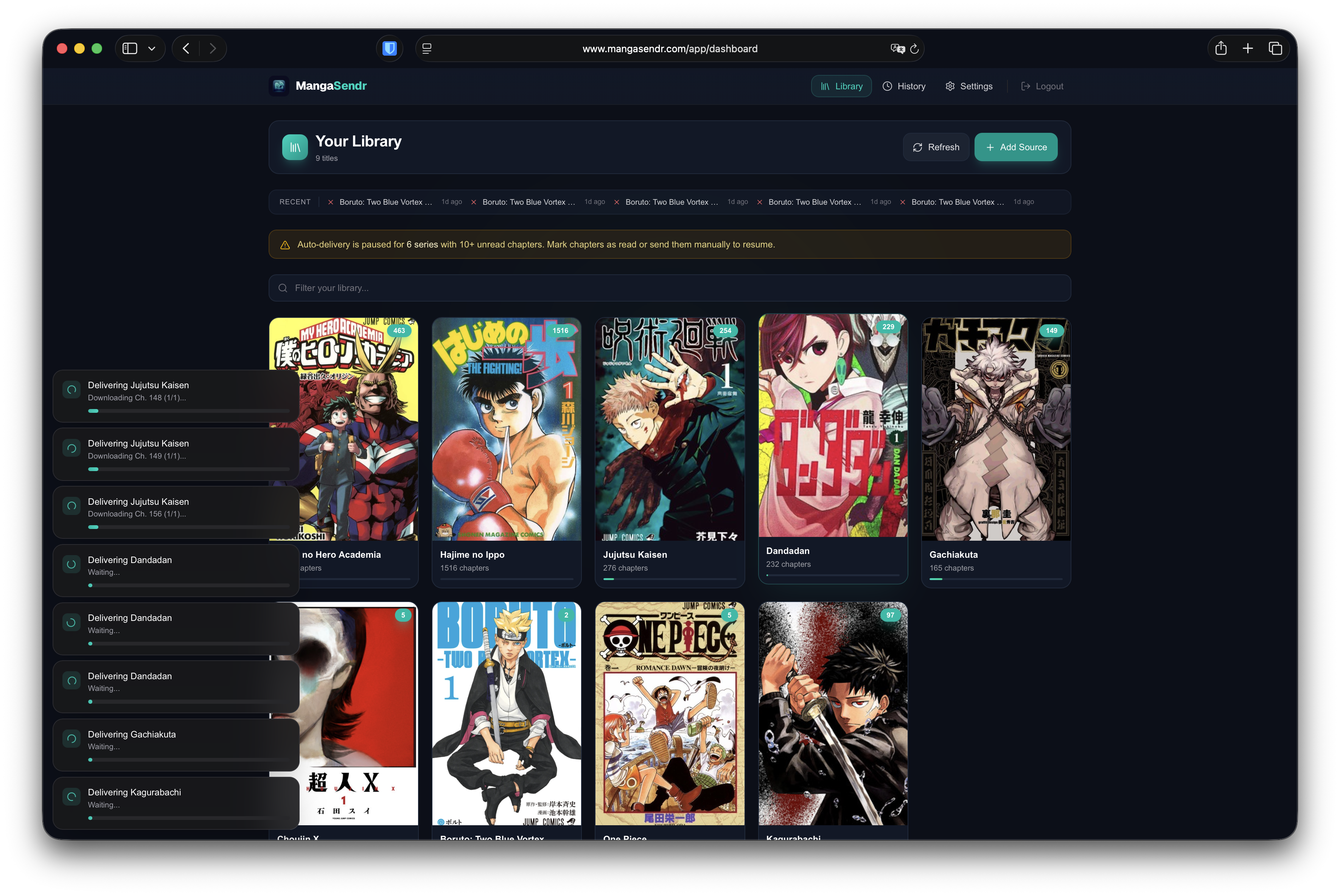
The dashboard shows live status while the job is running. You don't have to sit there watching it. The page updates in the background and you can navigate away.
Step 5: Install the desktop app for watched-folder auto-delivery
Dropping one file at a time is fine. But if you regularly download manga into a specific folder — your browser's Downloads folder, a cloud-sync folder, a NAS mount, whatever — the web app turns into a chore after the third or fourth file.
The MangaSendr desktop app for macOS and Windows solves this. Point it at a folder, and it:
- Picks up new files automatically. Any CBZ, CBR, EPUB, PDF, or folder of images that lands in the watched folder gets queued instantly.
- Converts with the same pipeline as the web app. Device-aware resizing, smart dithering, smart cropping, smart split, right-to-left reading order.
- Delivers to every Kindle you've registered, simultaneously, via email or USB.
- Runs in the background. Close the window, minimize it, ignore it. The watcher keeps going.
This is what "auto-delivery" actually means in 2026: new files on your disk become new chapters on your Kindle, with no clicks. Set it up once, then every time you save a new volume, it appears on the Kindle before you walk to the couch.
Grab the installer from Settings → Desktop App in the web app. Same account, same settings. The CBZ to Kindle guide has the full desktop-app walkthrough if you want to go deeper.
Step 6: Optimize image processing for your Kindle's e-ink display
Manga is just images, but bad image processing on an e-ink screen is the difference between "huh, this looks better than I expected" and "I'll just read on my phone." MangaSendr defaults to good settings for most devices, but two switches in Settings → Preferences are worth knowing about.
Enhance Contrast stretches the histogram so blacks are blacker and whites are whiter. Almost always on. The only reason to turn it off is if you've already pre-processed your scans.
Smart Dithering converts grayscale to a dot pattern that an e-ink screen can render without banding. Helps a lot on older Paperwhites and Basic Kindles. On modern Paperwhites and the Scribe the difference is subtle but still positive. Color e-readers (Colorsoft) handle gradients natively, so we disable it automatically there.
There are also a few automatic transformations you don't need to configure:
- Smart cropping trims the dead white margins that scan groups leave around the page edge. This is what makes manga actually fill your e-reader screen instead of floating in the middle of a white frame.
- Smart split cuts oversized volumes in half at chapter breaks so they fit under Amazon's 50MB Send-to-Kindle limit. You'll see "Vol 1 (1 of 3)" on the device when this kicks in. (See bypass the 50MB Send-to-Kindle limit for the full story.)
- Spread detection identifies double-page spreads in the source and either keeps them as a single landscape page or splits them into two portrait pages, depending on your device.
- Right-to-left reading order is preserved. The EPUB metadata sets the page progression to RTL, so your Kindle swipes through the chapter in the correct direction without you toggling anything.
If you want to see the difference each of those makes side-by-side, the home page has a live image processing showcase.
Step 7: Live with it
Once everything above is configured, you mostly stop opening the web app. Files you drop into the desktop watched folder arrive on your Kindle on their own, the dashboard reflects your delivery history, and the only times you come back are:
- To drop a new file manually from a phone or a computer without the desktop app.
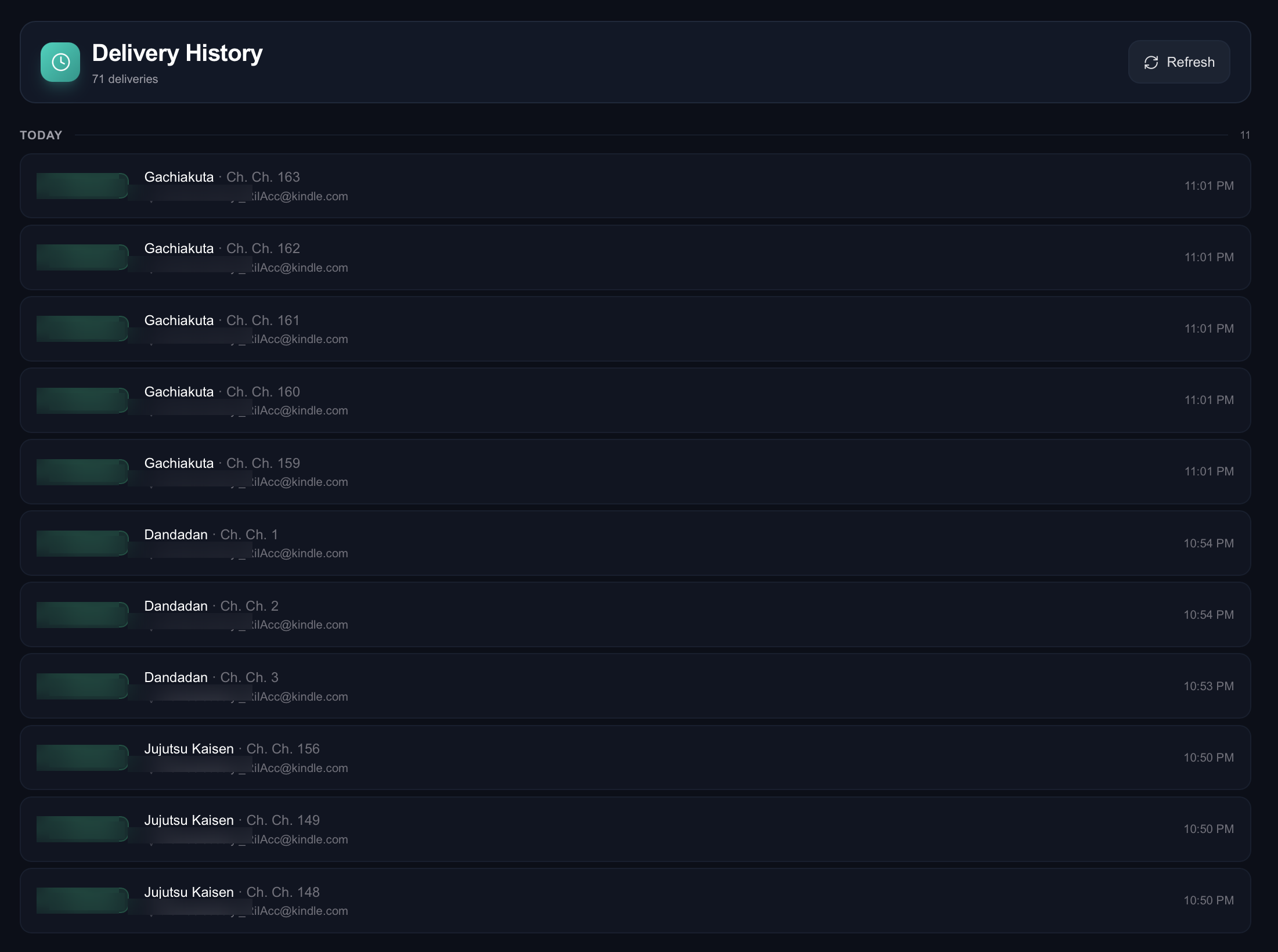
- To check delivery history. The History tab shows every delivery, manual or auto, with status, timestamp, and the device it went to. Filter by device or status if something looks off.
- To subscribe. When your free trial ends, deliveries pause and you'll see an Upgrade button in Settings → Subscription. Subscribing ($2.99/mo or $24.99/yr) instantly turns them back on.
See the workflow in action
If you'd rather watch the loop than read it, the simulator below cycles through the full pipeline (upload, conversion, optimization, delivery) in about 20 seconds.
MangaSendr
The only tool you'll ever need for your
digital library.
Things power users learn the hard way
A short list of things that aren't obvious from the UI but save real time once you know them.
- Drop a folder instead of a zip for loose images. Scanlations sometimes ship as 200 loose JPG files. Dragging the folder is faster than zipping it first and gives the same result.
- Each device has its own auto-delivery toggle. You can have a "drop new files here" Kindle and a "manual sends only" Kindle on the same account.
- Multi-device fan-out is free. Registering two Kindles means every file goes to both, at no extra cost.
- EPUB download is a fallback for non-Kindle readers. Next to the Send button there's a Download EPUB option. Useful for Kobo, Android e-ink, or any reader that doesn't take Send-to-Kindle email.
- Discord notifications. Subscribers can opt into per-delivery Discord pings. Useful if you want to know the second a file lands instead of going to your Kindle to check.
- Removing a file doesn't delete what's already on your Kindle. Anything that already shipped to the device stays there. Removing only cleans up your MangaSendr library.
Troubleshooting: when chapters don't arrive on your Kindle
If you've followed every step and a file still isn't showing up on your device, work through this list in order. 99% of "missing manga on Kindle" cases are one of the first three.
1. The sender address isn't whitelisted with Amazon
The single most common failure. Amazon silently drops emails from non-approved senders: no bounce, no error, just nothing on your Kindle. Open Amazon's Personal Document Settings and confirm delivery@mangasendr.com is listed under Approved Personal Document E-mail List. Add it if missing, then resend the file from the delivery history page.
2. The wrong Kindle email address
Your @kindle.com address is per-device, not per-account. If you registered the Send-to-Kindle email of an old or de-registered Kindle, the file is going into the void. Verify the address in Manage Your Content and Devices → Preferences → Personal Document Settings, then update the device in MangaSendr Settings → Kindle Devices.
3. The file is over Amazon's 50MB Send-to-Kindle limit
Some omnibus volumes blow past Amazon's attachment cap. MangaSendr auto-detects this and runs Smart Split to chunk the file into multiple parts ("Vol 1 of 3", "Vol 2 of 3", etc.). If smart split is misfiring on a specific file, the 50MB Send-to-Kindle bypass guide explains what's going on and how to nudge it.
4. The file is on your Kindle but not in your library list
Sometimes Amazon takes a few minutes to re-index Personal Documents. If the file isn't visible in Library → Downloaded after 5 minutes, sync the device manually (Settings → Sync Your Kindle). If it's still missing after a sync, check the delivery history in MangaSendr: a "delivered" status means we got a 200 from Amazon's mail server, so the issue is on Amazon's side, not ours.
5. The file renders but looks wrong (cropped, blurry, washed out)
Almost always a wrong-model setting. Edit the device in Settings → Kindle Devices, pick the correct model, and resend a single file as a test. If the device is a Scribe or Colorsoft, make sure you've selected those specifically rather than generic "Paperwhite".
FAQ
Can you read manga on a Kindle Paperwhite?
Yes. A Paperwhite (any generation from 2018 onwards) is one of the best e-readers for manga, period. The 6.8-inch screen is the right size for portrait pages, the 300 ppi panel is sharp enough for inked artwork, and the e-ink display causes no eye strain over long sessions. The only catch is that Kindles don't natively support CBZ or CBR files: you need to convert them to EPUB and either email the file via Send-to-Kindle or use a service like MangaSendr that automates the entire pipeline.
What format does Kindle support for manga in 2026?
The supported formats for sideloaded manga on a 2026 Kindle are EPUB (recommended), PDF, and image-based AZW3. MOBI uploads were retired by Amazon's Send-to-Kindle service. If you're following an older tutorial that tells you to convert files to MOBI, ignore it: the upload will be rejected. MangaSendr converts every file to EPUB by default for exactly this reason.
How do I send manga to my Kindle email?
Three steps. First, find your @kindle.com address in Amazon → Manage Your Content and Devices → Preferences → Personal Document Settings. Second, whitelist the sender address you'll be sending from in the same settings panel. Third, attach your converted EPUB file to an email and send it. MangaSendr does all three automatically: it uses delivery@mangasendr.com as the sender, and all you do is whitelist that address once.
Why can't I send MOBI files to my Kindle anymore?
Amazon retired the MOBI / AZW upload pathway for Send-to-Kindle. The accepted formats are now EPUB, PDF, DOCX, TXT, and a handful of image formats. If you have a legacy library of MOBI manga, the simplest fix is to re-convert them to EPUB in Calibre, or skip the conversion entirely by switching to a service that ships EPUBs directly.
Which file formats does MangaSendr accept?
CBZ and CBR archives, EPUB, PDF, and folders of images (JPG, PNG, WebP). Drop any of these into the web app or into a watched folder on the desktop app, and MangaSendr converts and delivers a Kindle-perfect EPUB.
Can I read manga on the Kindle Scribe and Colorsoft?
Yes to both. The Scribe's 10.2-inch panel is excellent for manga because the larger page size makes detailed artwork legible without zooming. The Colorsoft renders color manga (and color webtoons) natively without the dithering pass that monochrome Kindles need. Both devices accept Send-to-Kindle EPUBs the same way a Paperwhite does, and MangaSendr has dedicated model options for each so the resolution and processing match.
Do I need to install anything to add manga to my Kindle?
No. The MangaSendr web app runs entirely in your browser — drop a file and we handle the rest. The desktop app (macOS and Windows) is a separate download for people who want watched-folder auto-delivery: new files on disk get converted and delivered to your Kindle with no manual step.
How do I add manga to a Kindle without a computer?
Use the MangaSendr web app from your phone's browser. Sign up, drop a CBZ, EPUB, PDF, or folder of images into the upload area, register your Kindle once, and hit Send. The conversion and delivery happen on our servers. There's nothing to install on the phone or the Kindle.
Why did my first delivery never arrive on my Kindle?
99% of the time it's because delivery@mangasendr.com isn't whitelisted in your Amazon Personal Document settings. Amazon silently drops emails from non-approved senders. There's no bounce, no error. Add the address, then resend the file from the delivery history page. See the troubleshooting section for the next four most common causes.
Can I use the same MangaSendr account from multiple computers?
Yes. It's a web app with cloud-synced state. Sign in on as many devices as you want. Your library, settings, devices, and delivery history are identical everywhere.
What happens to my library if my subscription lapses?
Nothing disappears. Your devices, settings, and delivery history all remain. You just stop being able to deliver new files until you re-subscribe.
Can I deliver to a Kobo, Boox, or other non-Kindle device?
Yes — for non-Kindle readers, the Download EPUB option on every file gives you an optimized EPUB you can side-load manually. For fully automated delivery, Kobo and Boox devices are handled best by the desktop app's USB transfer option. See the Kobo manga guide for the full story.
Ready to send manga to your Kindle?
Sign up takes about 60 seconds, the free 7-day trial gives you unlimited deliveries to test the entire pipeline, and there's no credit card involved. By the time you finish brewing coffee, you can have a chapter on your Kindle.
Related guides
- How to Send Manga to Kindle in 5 Minutes (Quickstart). The TL;DR version of this walkthrough.
- How watched-folder auto-delivery works. The deeper dive on the desktop app and how new files become new Kindle chapters automatically.
- How to send CBZ and CBR manga to Kindle. The desktop-app workflow for a whole folder of files.
- How to bypass the 50MB Send-to-Kindle limit for manga. What smart-split does and why oversized volumes still arrive in one piece.
- Best e-reader for manga in 2026. Picking the right Kindle (or Kobo) before you set up delivery.
- How to read manga right-to-left on Kindle. Page progression and reading order on sideloaded EPUBs.
Ready to automate your library?
Ditch the USB cable for good — your files, converted and delivered to your Kindle in minutes.
Start Free Trial