How to Read Manga on Kindle: The Ultimate Guide (2025)
Why Reading Manga on Kindle Can Be Frustrating
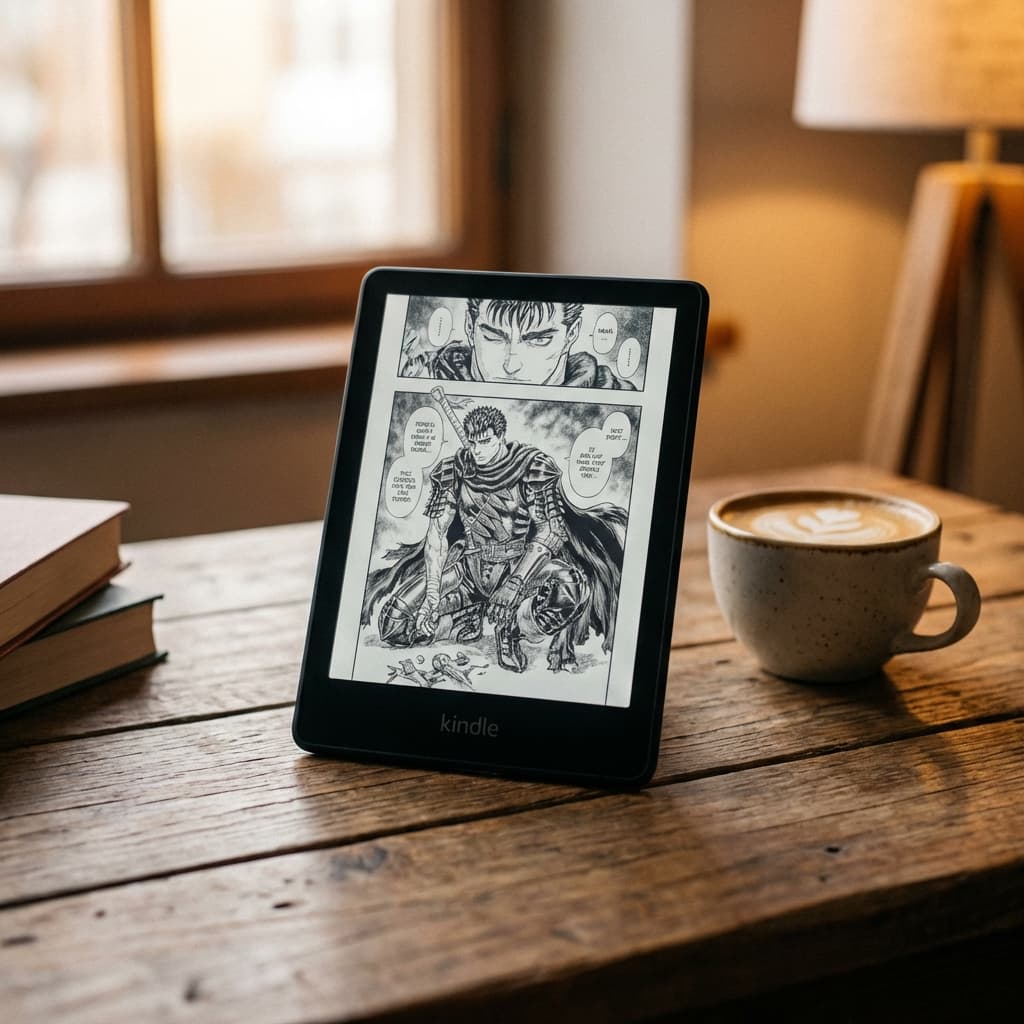
Kindle devices are arguably the best way to read manga. The e-ink screen mimics paper, reduces eye strain, and the battery lasts for weeks. However, Amazon's ecosystem was built primarily for text-based books, not image-heavy comics.
If you've ever tried dragging a folder of images or a .cbz file onto your Kindle, you know the struggle: it doesn't work. Kindles lack native support for standard comic formats like CBZ, CBR, or raw image folders. Manual PDF conversion often results in:
- Tiny, unreadable text and panels
- Huge white margins wasting screen real estate
- Disorganized libraries with missing or broken covers
- Slow page turns due to oversized, unoptimized files
What File Formats Does Kindle Actually Support?
As of 2025, Kindle devices support EPUB (the modern standard), AZW3/KFX (Amazon's proprietary formats), PDF, and MOBI (legacy, being phased out). Notably absent are CBZ and CBR, the two most common formats for downloaded manga. This means every manga file you download needs to be converted before your Kindle can read it. For a deeper breakdown, see our format comparison guide.
Method 1: The Manual Way (Calibre + KCC)
For years, the gold standard for enthusiasts has been combining Kindle Comic Converter (KCC) with Calibre. While effective, it requires significant time for each transfer:
- Download your manga chapters (ZIP/CBZ) to your computer.
- Open KCC and configure the output resolution for your specific Kindle model (e.g., 1236x1648 for Paperwhite 11th Gen).
- Wait for conversion — KCC repackages raw images into EPUB or MOBI format.
- Import into Calibre to fix broken metadata (covers, author names, and series info are frequently stripped during conversion).
- Connect your Kindle via USB cable and transfer the files manually.
- Safely eject and wait for the Kindle to index the new files (this can take several minutes for large libraries).
This process tethers you to your desktop every single time a new chapter drops. If you follow 10+ series with weekly releases, the overhead becomes unmanageable. For more details on KCC's limitations, see our KCC alternative comparison.
Common Problems with Manual Conversion
Even after following the steps above, you may encounter frustrating issues. White margins are the most common — your manga pages appear tiny with huge borders because the source images don't match your Kindle's exact aspect ratio. See our white margin fix guide for the technical explanation.
Another persistent issue is missing covers. Amazon's system has an ASIN-based bug where sideloaded books frequently lose their cover art, displaying a generic "DOC" icon instead. We explain the root cause and fix in our cover fix guide.
Finally, files over 50MB cannot be delivered wirelessly via Send-to-Kindle, which rules out most high-quality manga volumes. Our 50MB limit guide explains why and how to work around it.
Method 2: The Automated Way (MangaSendr)
We built MangaSendr to solve this exact friction. It transforms the complex manual pipeline into a simple "set and forget" background process running on your desktop.
Simply point MangaSendr to your download folder, and it automatically:
- Detects new chapters instantly when they appear in your watched folder.
- Converts to Kindle-native EPUB — no manual format selection needed.
- Optimizes images for e-ink displays: smart-crops margins to your exact screen dimensions, enhances contrast for sharper blacks, and applies dithering for smooth gradients.
- Fetches metadata from AniList — high-res cover art, author names, genre tags, and synopsis are embedded automatically.
- Splits large volumes intelligently at chapter boundaries to bypass the 50MB Send-to-Kindle limit, without cutting mid-page.
- Delivers wirelessly to your device via Send-to-Kindle email, or directly via USB for bulk transfers.
Your workflow simplifies to: Download on PC → Start reading on Kindle. No cables, no settings, no manual steps.
Which Kindle Model Is Best for Manga?
Not all Kindles are created equal for manga reading. The Kindle Paperwhite Signature Edition (11th Gen) is our top recommendation: its 6.8-inch, 300 PPI screen provides the sharpest text and deepest blacks in the lineup, and the 32GB storage holds roughly 200+ optimized manga volumes.
If budget allows, the Kindle Scribe offers a massive 10.2-inch display that makes double-page spreads genuinely readable — see our Scribe manga guide for optimization tips. For a full comparison across Kindle, Kobo, and Android e-ink tablets, read our best e-reader for manga guide.
Tips for the Best Manga Reading Experience
Enable Right-to-Left (Manga Mode)
Japanese manga reads right-to-left. If your pages flip in the wrong direction, you need to enable Manga Mode via a metadata tag in your EPUB file. MangaSendr adds this automatically, but if you're converting manually, see our right-to-left guide.
Disable Page Refresh for Faster Turns
Go to Settings > Reading Options > Page Refresh and turn it off. This prevents the Kindle from doing a full screen refresh between every page, resulting in noticeably snappier page turns during manga reading sessions.
Keep Your Library Lean
Kindle indexing slows down when you have hundreds of sideloaded files. Transfer a few series at a time, and keep your device plugged in overnight after bulk transfers so indexing can complete in the background.
Frequently Asked Questions
Can I read manga on a basic Kindle (not Paperwhite)?
Yes, but the experience is significantly worse. The basic Kindle has a 6-inch, 167 PPI screen — noticeably blurrier than the Paperwhite's 300 PPI. Fine manga details and small text bubbles may be hard to read. We strongly recommend the Paperwhite or higher for manga.
Does Send-to-Kindle work with manga files?
Amazon's Send-to-Kindle service accepts EPUB and PDF files up to 50MB. Since most manga volumes exceed this limit, you'll need a tool like MangaSendr that splits volumes automatically. Raw CBZ/CBR files are not accepted by Send-to-Kindle at all.
Is it legal to sideload manga onto Kindle?
Sideloading itself is completely legal — Amazon provides the Send-to-Kindle feature specifically for personal documents. The legality depends on how you obtained the manga files. We recommend purchasing from legitimate digital stores or using official publisher apps.
Conclusion
Reading manga on Kindle is one of the best experiences available — once you solve the format and delivery problems. If you only read a volume occasionally, the manual Calibre + KCC method works. But for regular readers who follow multiple series, automation eliminates hours of weekly busywork. Give your eyes a break from LCD screens and enjoy manga the way it was meant to be read: on paper-like e-ink, with zero friction.
Related Reading
Ready to upgrade your reading experience?
Stop fighting with file formats. MangaSendr handles everything automatically.
Start reading with MangaSendr