Optimizing the Kindle Scribe for Manga: Is the 10.2-inch Screen Worth It?
The Kindle Scribe features a massive 10.2-inch display. Discover how to format your manga files to take full advantage of this premium hardware.
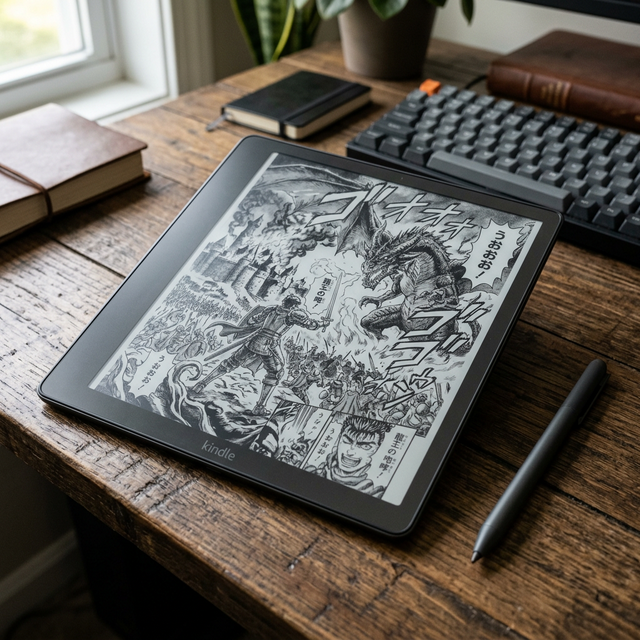
When the Kindle Scribe was released, it was immediately hailed as a potential gamechanger for digital comic and manga readers. With a 10.2-inch, 300 PPI display, it offers nearly double the screen real estate of a standard Kindle Paperwhite.
But does bigger always mean better? And more importantly, how do you format your files to look crisp on such a massive canvas?
The Pros of the 10.2-inch Canvas
For many manga readers, the Scribe is the holy grail.
- Reading at "Perfect Edition" Scale: A standard 6-inch reader mimics a cheap, small Tankōbon volume. The Scribe mimics the physical dimensions of premium, oversized "Kanzenban" or "Perfect Edition" releases (like the Berserk Deluxe Editions). The artwork breathes, and tiny background details or dense text bubbles are completely legible without zooming.
- Double-Page Spreads: Mangaka use double-page spreads for the most epic moments. On a 10-inch screen, rotating to landscape mode provides enough width to view a spread comfortably.
- High-Resolution Crispness: Retaining 300 Pixels Per Inch (PPI) across a 10-inch screen requires a massive pixel count. When fed high-quality source files, the line art is astonishingly sharp.
The Cons (and the Scribe's Hidden Trap)
It is not a perfect device, and there is one major caveat for manga readers.
- The Weight Factor: The Scribe weighs 433 grams. A Paperwhite weighs 205 grams. You cannot read the Scribe one-handed for long periods. It requires a lap, a table, or a specialized stand.
- The Resolution Trap: Because the screen is so large and high-resolution, low-quality files look terrible. If you sideload an old, poorly compressed PDF scan from 2010 onto a 6-inch screen, it looks okay because the screen is small. On the Scribe, the compression artifacts, blurry lines, and ugly gray halftones are magnified and painfully obvious.
How to Optimize Files for the Kindle Scribe
To make the Scribe worth its premium price tag, you must feed it optimized files.
1. Ditch the PDF Format
A PDF is a rigid document. If the PDF margins don't exactly match the Scribe's aspect ratio, you get massive white bars on the sides or top. You must convert your files to EPUB.
2. Smart Margins and Cropping
Every pixel matters. A standard conversion tool might leave a 5% white border around the image. On a 10-inch screen, 5% is a significant amount of wasted space. The images must be dynamically cropped to the absolute edge of the ink.
3. Resolution Targeting
The Scribe has a resolution of roughly 1860 x 2480 pixels. If your source manga images are smaller than this (e.g., 1200 pixels wide), standard conversion tools might "stretch" them, resulting in blurriness. Your conversion tool needs intelligent upscaling algorithms (like Lanczos resizing) to maintain crisp edges.
Automating Scribe Perfection with MangaSendr
Manually editing hundreds of images in Photoshop to fit the Scribe's exact resolution is a full-time job.
MangaSendr handles this entire pipeline automatically:
- We target the specific hardware profile of the Scribe.
- We crop all white margins automatically using our computer vision engine.
- We apply smart sharpening and high-quality Lanczos resizing.
- We output a pristine EPUB that takes full advantage of the 300 PPI display.
MangaSendr
The only tool you'll ever need for your
digital library.
If you invested in premium hardware, invest in a premium workflow. Start automating your manga library with MangaSendr today.
Ready to automate your library?
Ditch the USB cable for good — your files, converted and delivered to your Kindle in minutes.
Start Free Trial