How to Read Double-Page Spreads on Kindle
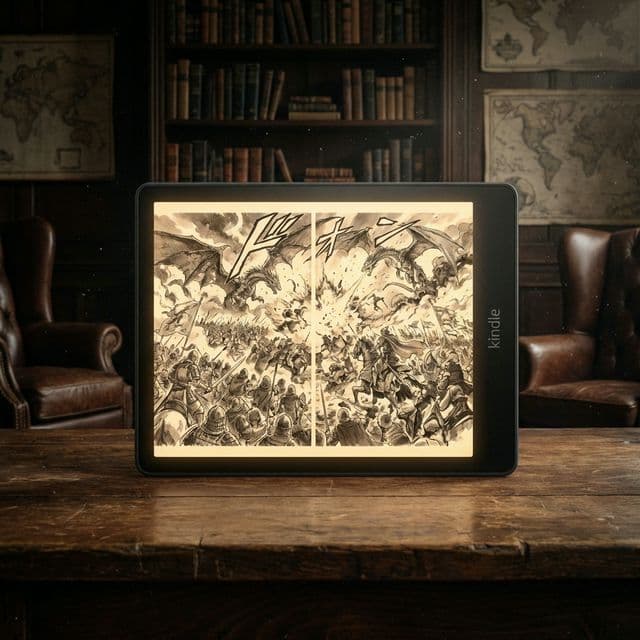
Manga artists (mangaka) use double-page spreads for the biggest, most impactful moments in a story. A massive battle, a sweeping landscape, a pivotal realization—these are drawn to span across two physical pages.
On a 6-inch Kindle screen, these spreads are usually squashed into a single portrait page (making them tiny) or split awkwardly into two separate pages.
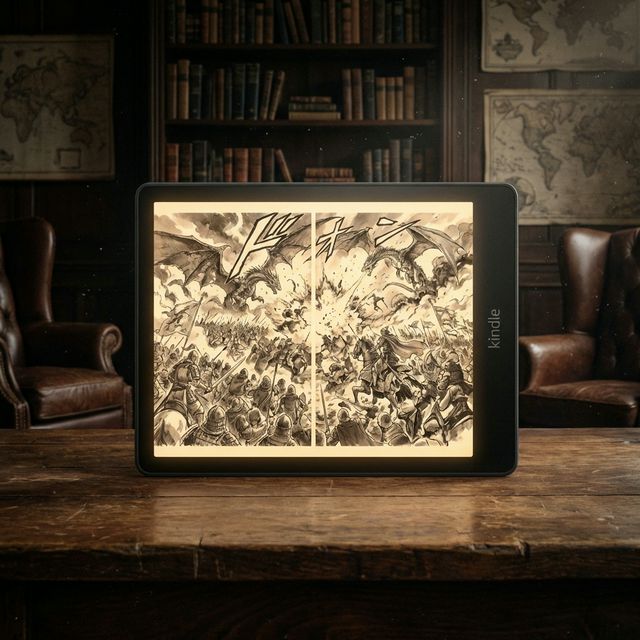
Solution 1: Landscape Mode (The Native Way)
The simplest fix is to rotate your device. While in a book, tap the top menu → Aa → Layout → Orientation. Select the "Landscape" icon.
This allows the spread to fill the width of your screen. The downside? You have to scroll up/down to see the whole image, or the image will be fit to height (leaving huge black bars on the sides).
Solution 2: Auto-Rotate (The MangaSendr Way)
We believe technology should adapt to you, not the other way around. MangaSendr's processing engine can detect double-page spreads automatically.
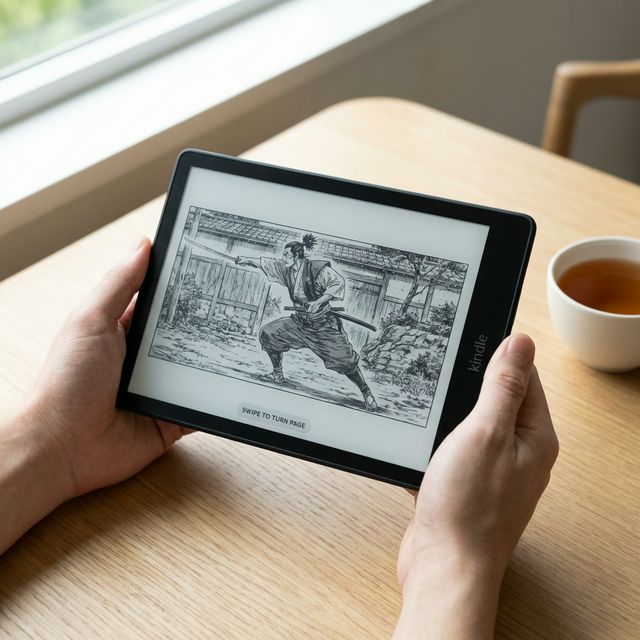
In your user preferences, you can enable "Smart Rotate". When enabled, we physically rotate the image 90 degrees in the file itself.
When you reach a spread on your Kindle, you simply turn the device sideways. The image fills the screen perfectly, no menu digging required. Turn the page, rotate back for the next standard panel. It feels like magic.
Ready to upgrade your reading experience?
Stop fighting with file formats. MangaSendr handles everything automatically.
Start reading with MangaSendr