Why Your Manga Covers Keep Disappearing (And How to Fix It)
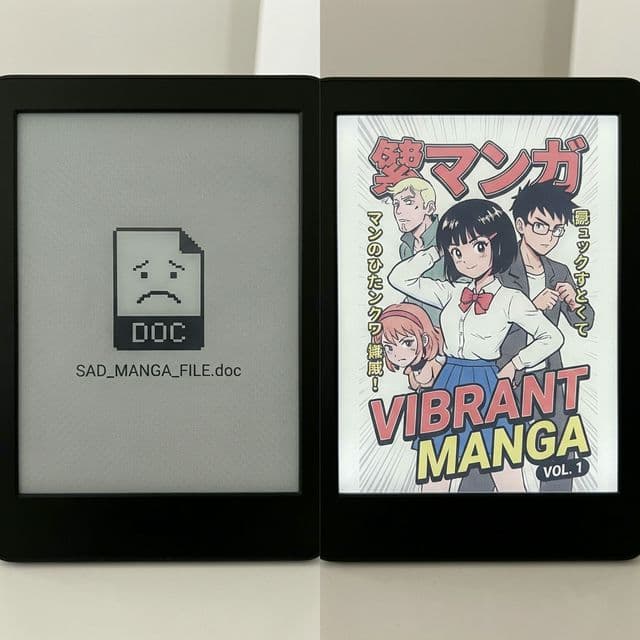
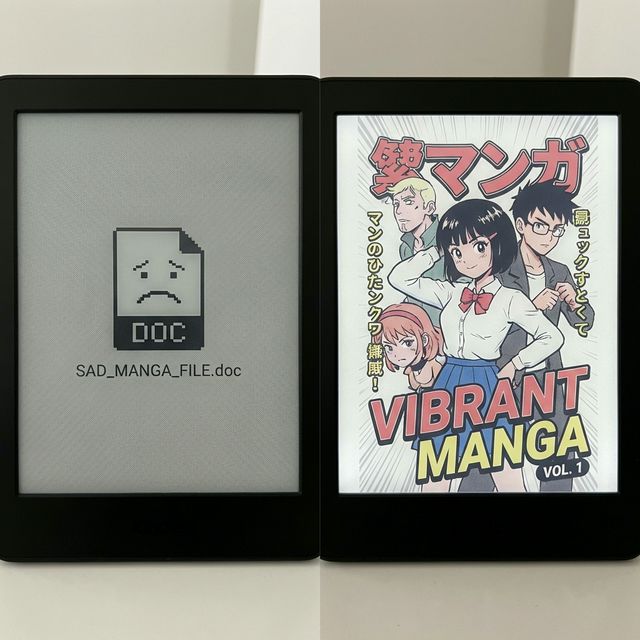
It is the most common complaint among Kindle power users: You send a perfectly formatted manga file to your device, the cover appears for a split second, and then... poof. It is replaced by a generic, sad-looking "DOC" icon.
The "Amazon Bug" Explained
This isn't just bad luck; it's a specific behavior of the Kindle OS. When you sideload a book (via USB or Send-to-Kindle), the device attempts to match it with a title in the Amazon Store using an identifier called ASIN.
If your file doesn't have a valid ASIN (or has a fake one that doesn't match Amazon's database), the device's sync service "corrects" the entry by removing what it sees as invalid metadata—including your cover thumbnail.
The "Airplane Mode" Workaround
You may have noticed that covers stick around if you keep your device in Airplane Mode. This confirms the issue is the sync service. But keeping your device offline forever defeats the purpose of a wireless e-reader.
The Permanent Fix: Metadata Injection
This is where MangaSendr shines. We don't just copy files; we restructure them.

Our processing engine:
- Generates a valid UUID for every document.
- Flags the file as a "Personal Document" in a way that tells Kindle "Do not sync this with the store".
- injects the cover into the standardized
/thumbnailsdirectory structure that the OS expects.
The result? Your covers stay visible, online or offline, forever. No more "DOC" icons ruining your library aesthetic.
Ready to upgrade your reading experience?
Stop fighting with file formats. MangaSendr handles everything automatically.
Start reading with MangaSendr